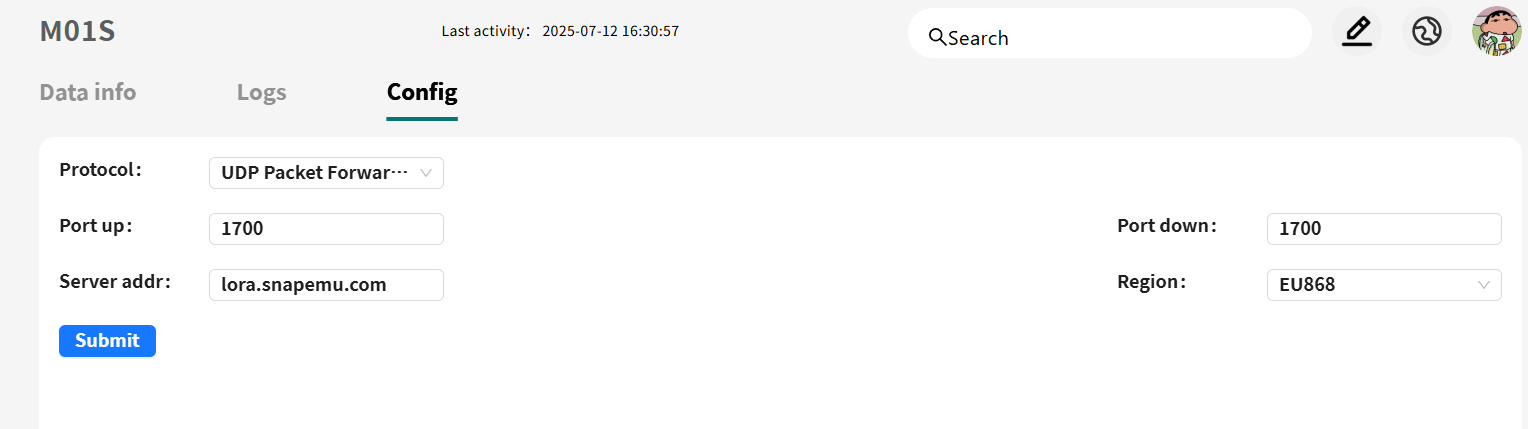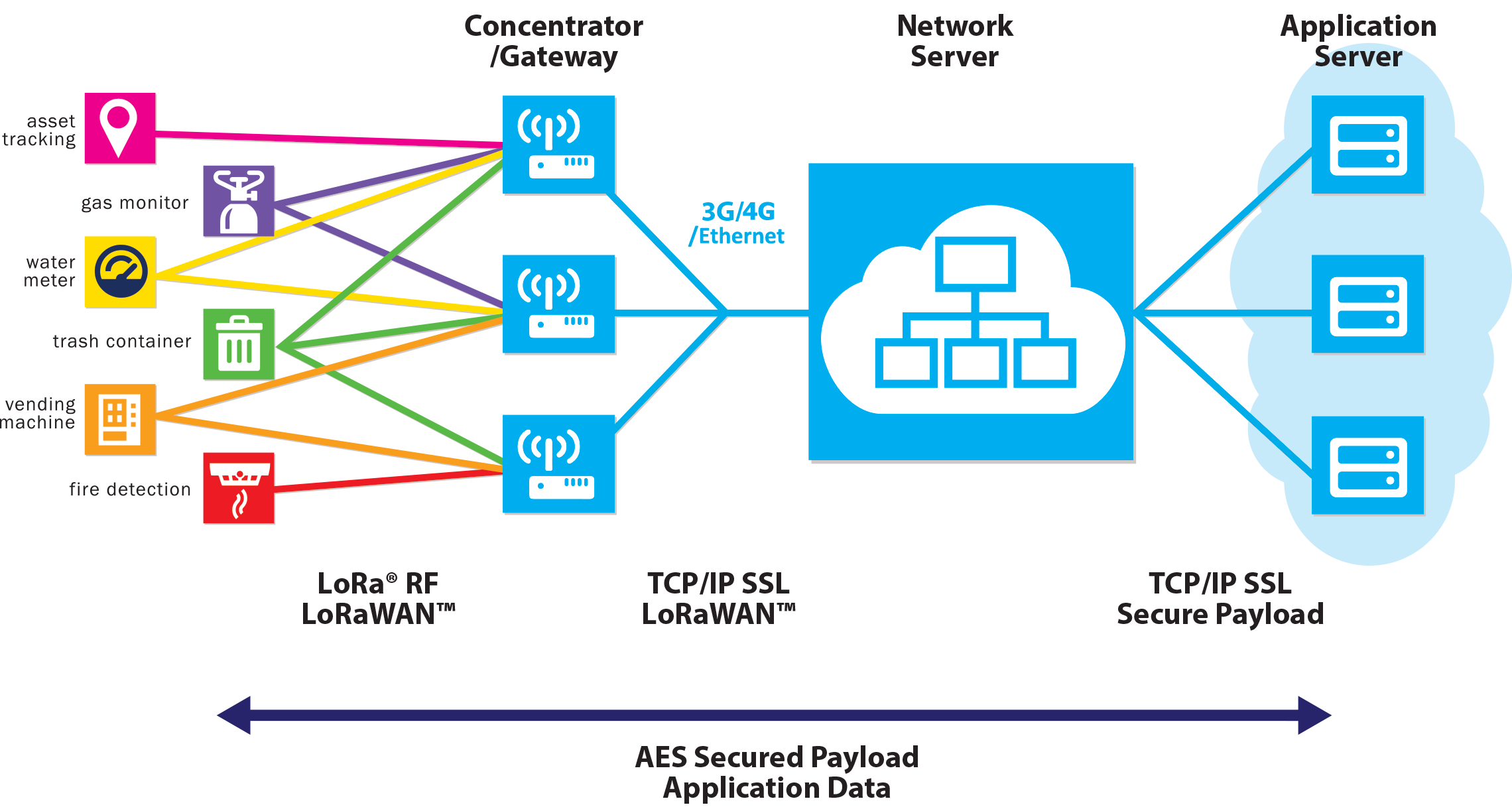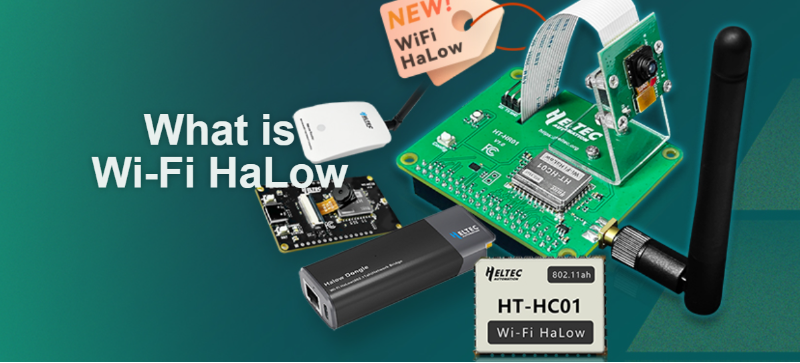

Centralized Control for Distributed Gateways.
SnapEmu gives operators one place to configure, upgrade, monitor and troubleshoot compatible Heltec gateways without routine on-site intervention.
- 01
Register
Bind a supported gateway identity to SnapEmu.
- 02
Connect
Keep a stable upstream path to the cloud service.
- 03
Observe
Read status and configuration without visiting the site.
- 04
Maintain
Apply supported updates and settings remotely.
SnapEmu currently supports the following three gateways.
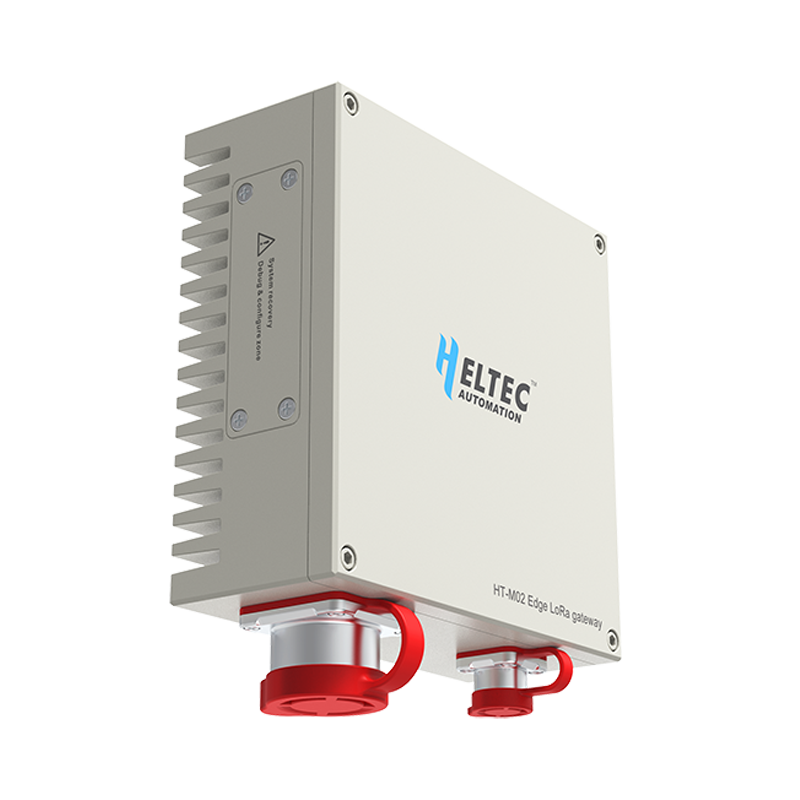
Outdoor edge gateway / 01
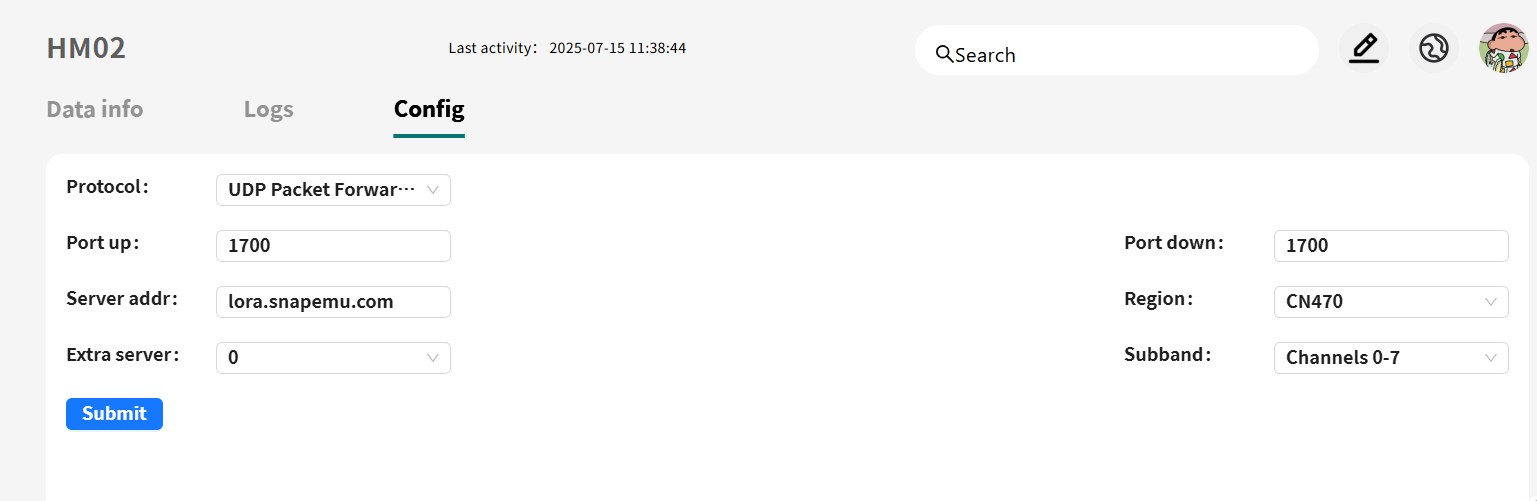
HT-M02 Edge LoRa Gateway
- IP66 water and dust protection
- Local web configuration
- Aluminum thermal enclosure
- Docker-ready deployment
- 01Complete the gateway configuration using the HT-M02 documentation.
- 02Connect over SSH and run the supported update command.
rm -rf update_M02* && wget http://minerback.heltec.cn/download/update_M02.sh && chmod +x update_M02.sh && ./update_M02.sh - 03Return to Remote Control, select Enable, and apply the setting.
- 04Register the device in SnapEmu, then open Configure to activate remote management.
Indoor gateway / 02
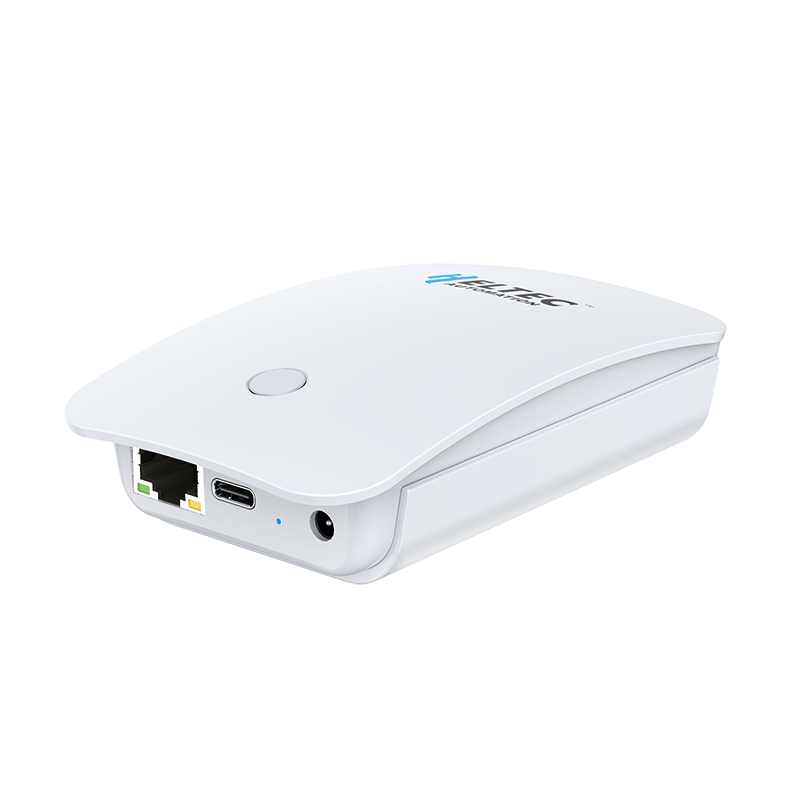
HT-M7603 Indoor LoRa Gateway
- MT7628 MCU with SX1303 + SX1250
- Wi-Fi and Ethernet connectivity
- Up to 27 ± 2 dB output
- LoRaWAN Class A, Class C and MQTT
- 01Configure the gateway with the HT-M7603 quick-start guide.
- 02Update the gateway over SSH with the supported script.
rm -rf update_M7603* && wget http://minerback.heltec.cn/download/update_M7603.sh && chmod +x update_M7603.sh && ./update_M7603.sh - 03Enable Remote Control in the local configuration interface.
- 04Register the gateway in SnapEmu and verify that Configure opens.
Multipurpose gateway / 03
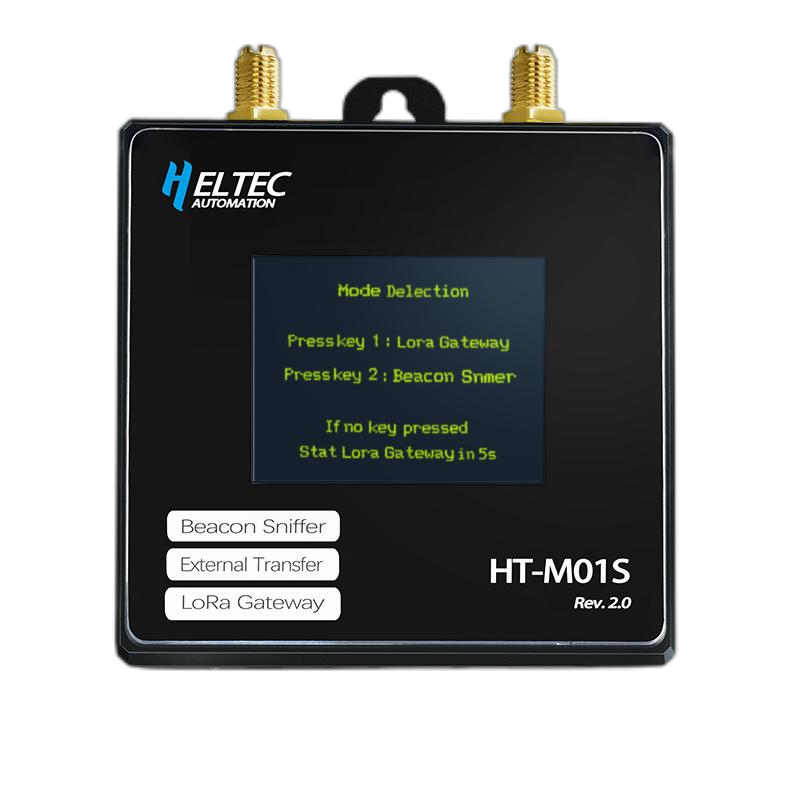
HT-M01S LoRa Gateway
- Helium Beacon Sniffer support
- Wi-Fi and Ethernet connectivity
- Up to 27 ± 2 dB output
- −20°C to 70°C operating range
- 01Configure the HT-M01S using the HT-M01S quick-start guide.
- 02After completing the configuration, select Firmware Update and upload the M01S firmware. The system will automatically redirect to a new configuration page.
- 03On this page, click SPIFFS Update and upload the M01S_SPIFFS firmware.
- 04Follow the instructions in this manual to register the gateway on the SnapEmu platform. Once registration is successful, click Configure to activate remote management.