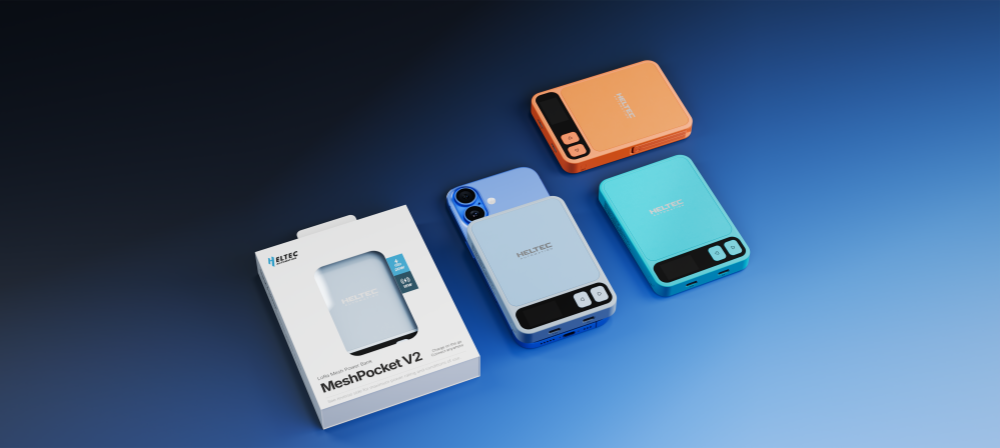
Introduction to the New Heltec Website
As Heltec's product lineup, application scenarios, and community ecosystem continue to expand, the previous website had room for improvement in terms of visual design, content presentation, information organization, and overall user experience.
To better showcase Heltec's brand identity, products, and technical capabilities, while providing visitors with a more intuitive, informative, and user-friendly browsing experience, we have carried out a comprehensive redesign of our official website.
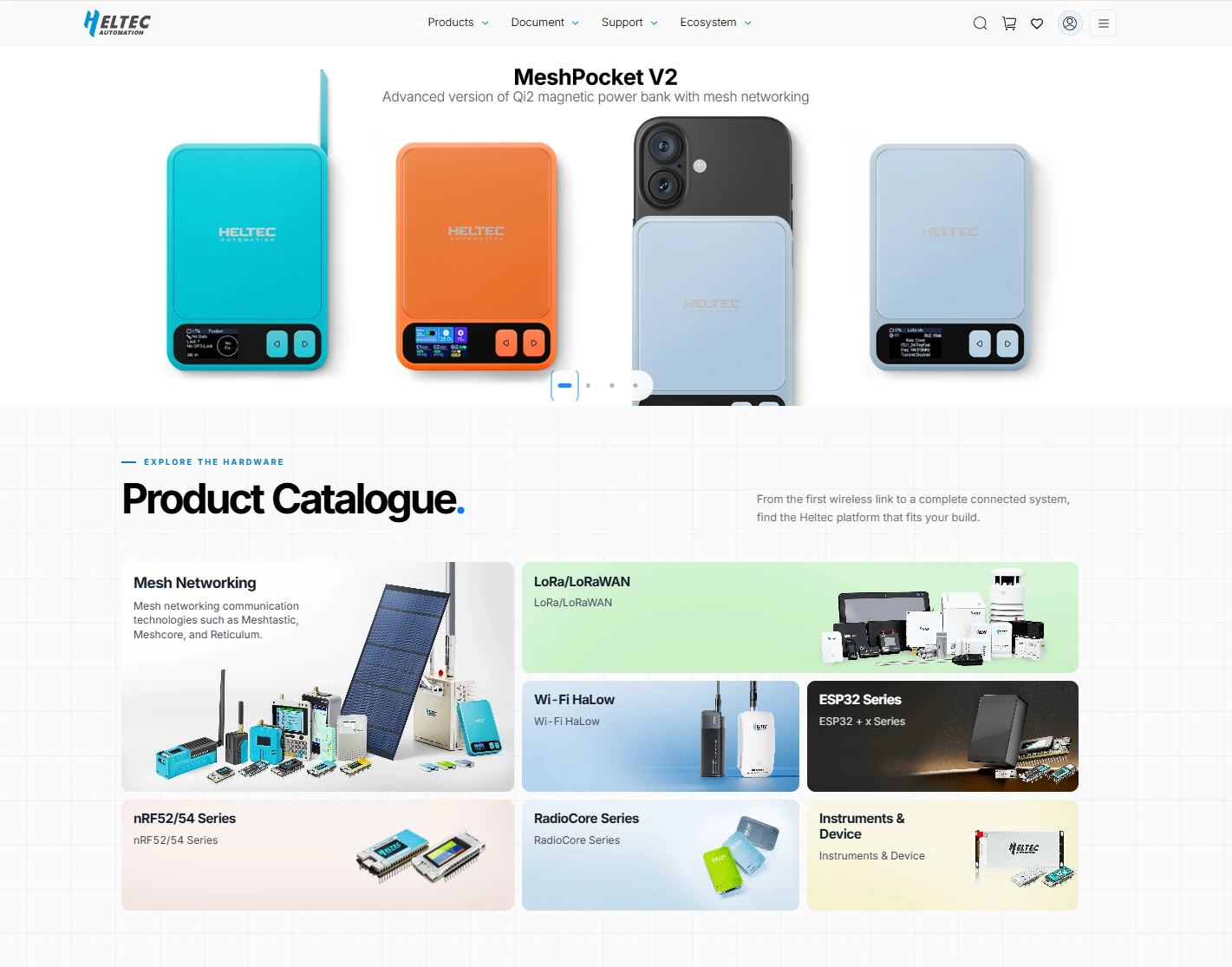
The new website features an updated visual design, improved content structure, optimized existing features, and several new functional modules.
1. Products – New Product Catalogue
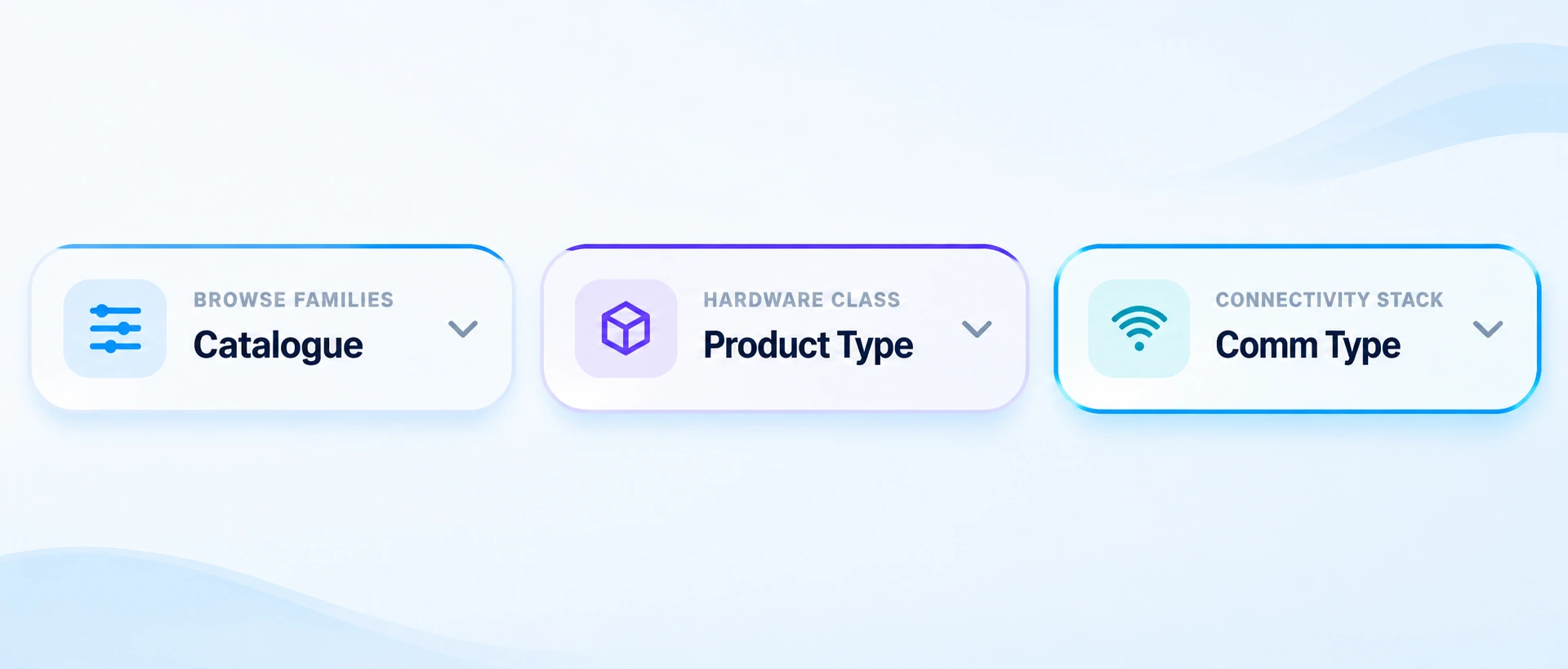
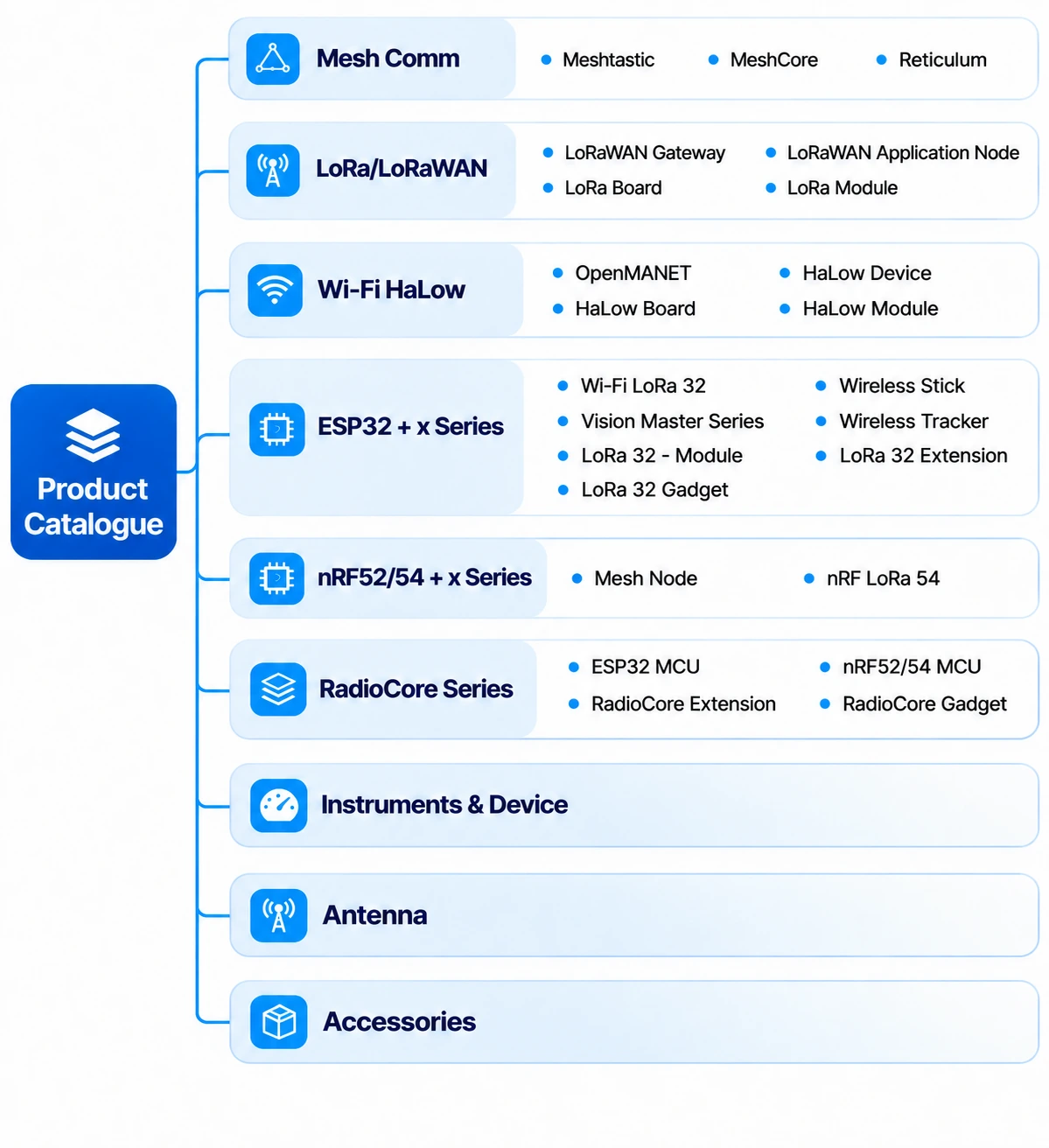
The new Products catalogue has been redesigned to provide a more structured and intuitive way to explore Heltec's growing product portfolio. Products are now organized into three classification dimensions: Product Type, Communication Type, and Product Series, allowing users to discover products based on their form, technology, and product family.
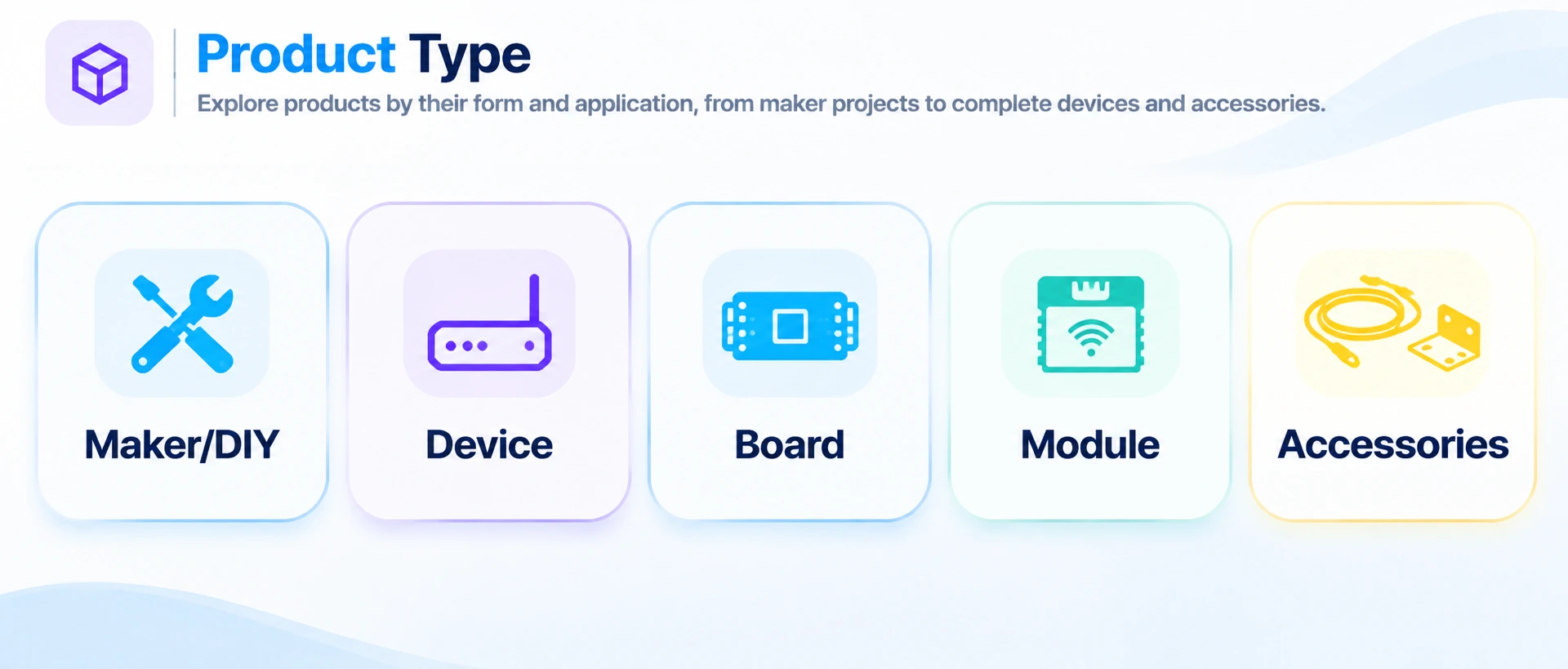
1.1 Product Type
Product Type categorizes products according to their physical form and intended use, making it easier for users to identify the type of hardware they are looking for.
1.2 Communication Type
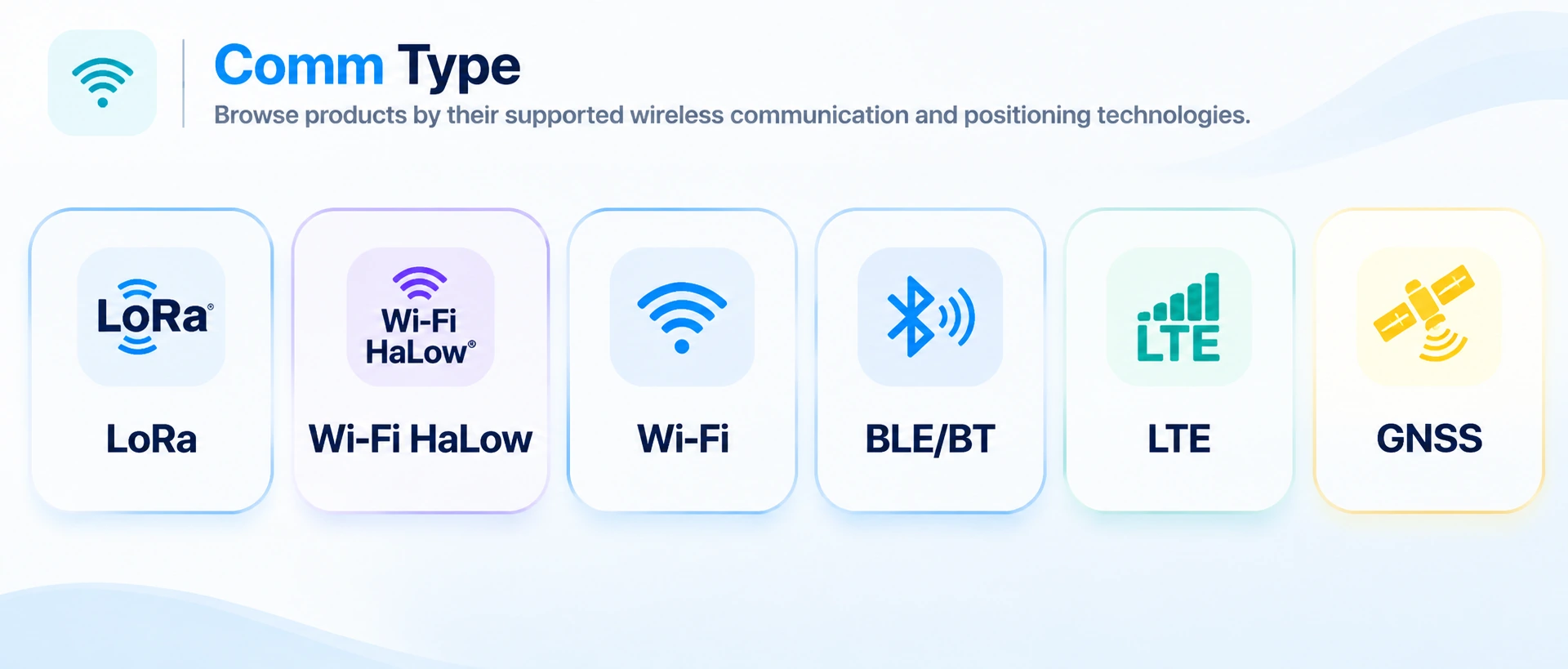
Groups Heltec products by their supported wireless communication and positioning technologies, including LoRa, Wi-Fi HaLow, Wi-Fi, BLE/BT, LTE, and GNSS, helping users quickly identify products with the connectivity features they need.
1.3 Product Catalogue
2. Documents – Documentation & Resources
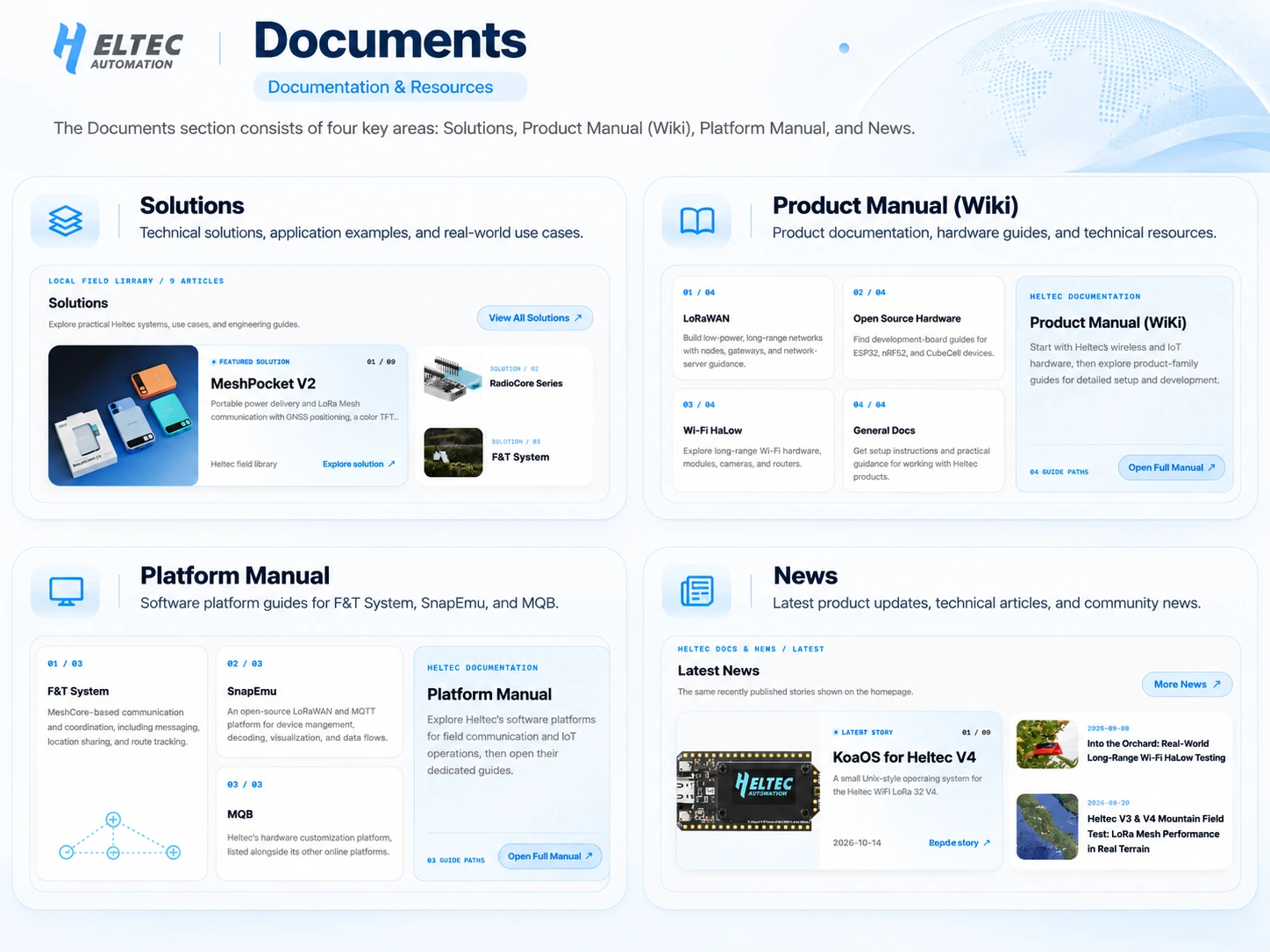
The Documents section consists of four key areas: Solutions, Product Manual (Wiki), Platform Manual, and News. Users can explore Heltec's technical solutions and real-world applications, access product documentation and development guides, learn about software platforms, and stay up to date with the latest product releases and company news—all in one place.
3. Support – Help & Community
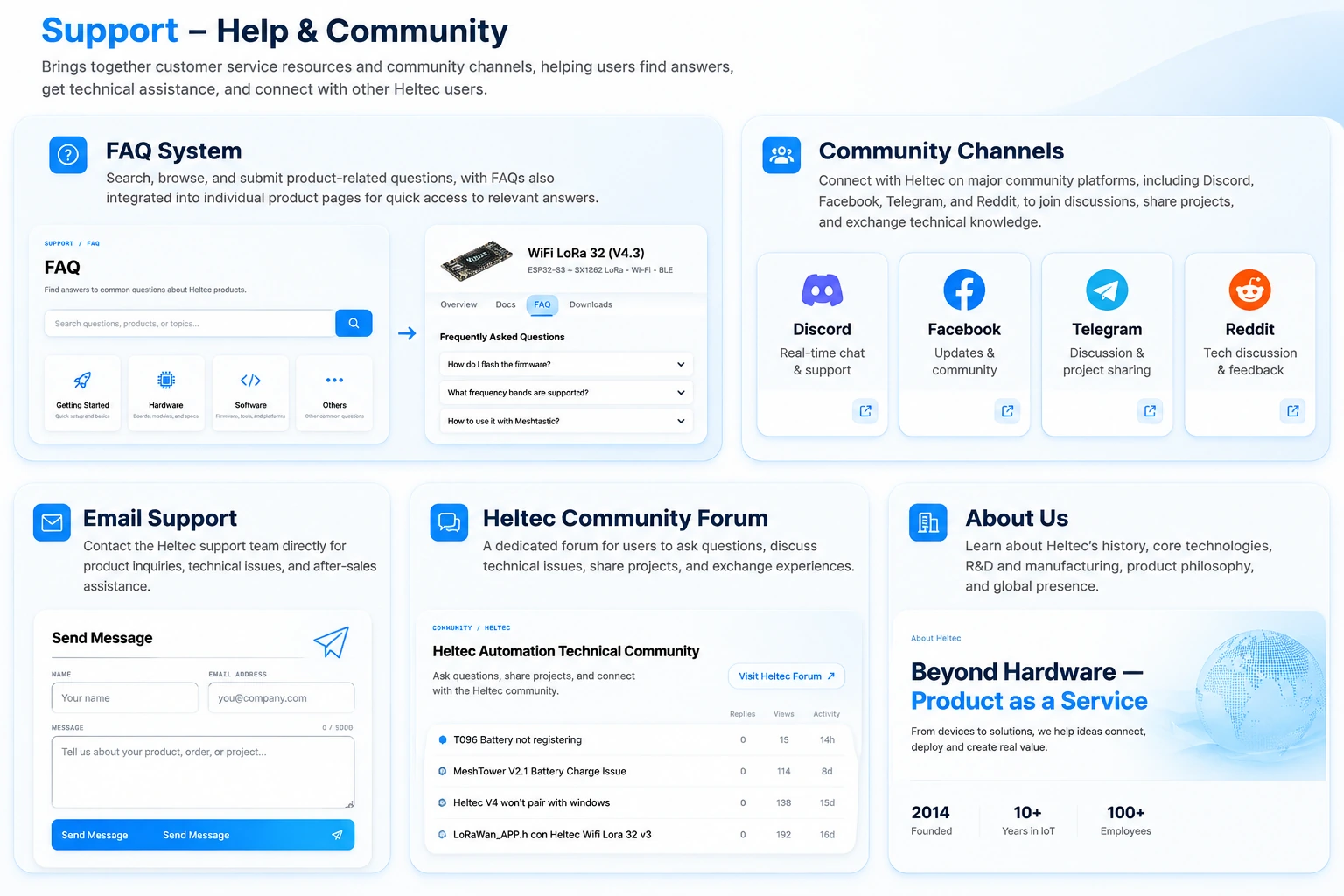
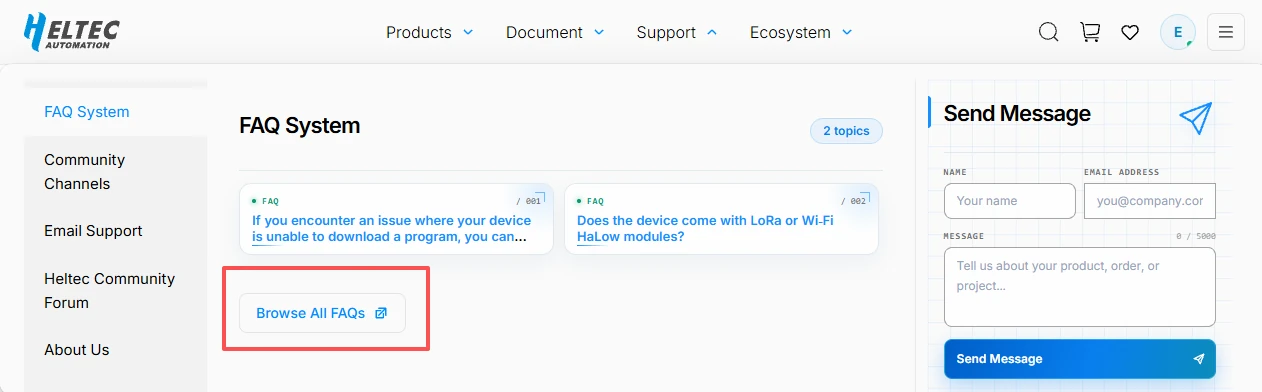
The Support section brings together five key areas: FAQ System, Community Channels, Email Support, Heltec Community Forum, and About Us. Users can search for product answers, submit technical questions, connect with Heltec communities on Discord, Facebook, Telegram, and Reddit, contact the support team directly, exchange experiences with other users, and learn more about Heltec's company background, technologies, and global presence—all through one centralized platform.
3.1 FAQ
The FAQ brings together product guidance, configuration steps, and answers to common questions. Search by keyword or browse by category to find help for your device.
Click Browse All FAQs to visit Heltec official FAQ page.
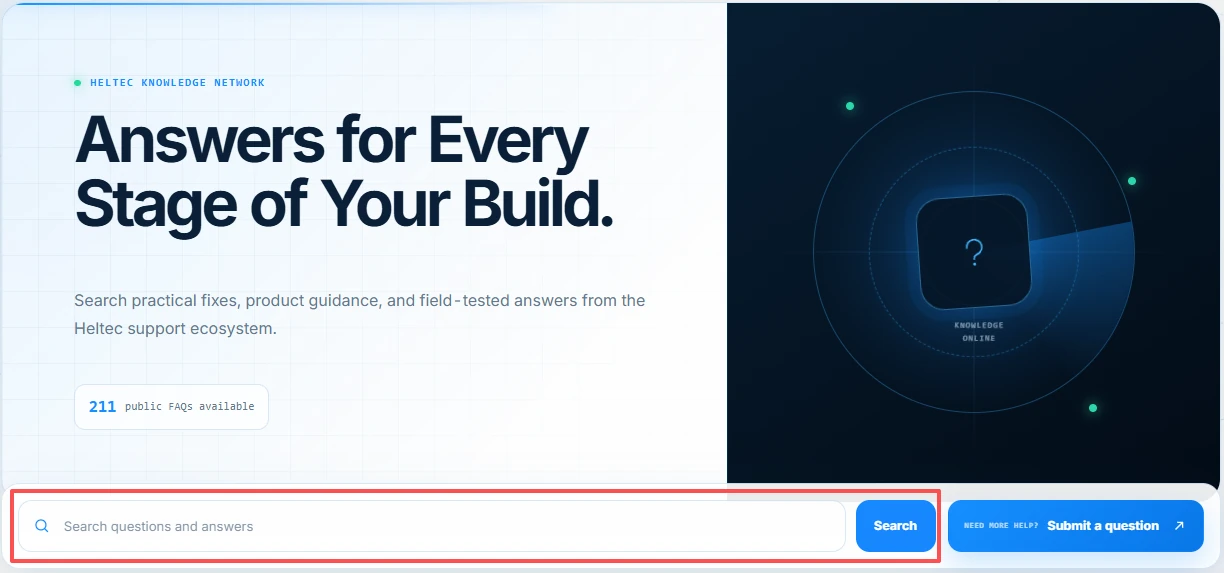
3.1.1 Search by Keyword
For FAQ Page. Enter a product model or keyword, such as Meshtastic, battery, or firmware, in Search FAQ, then select Search. Select Clear FAQ search to remove the keyword.
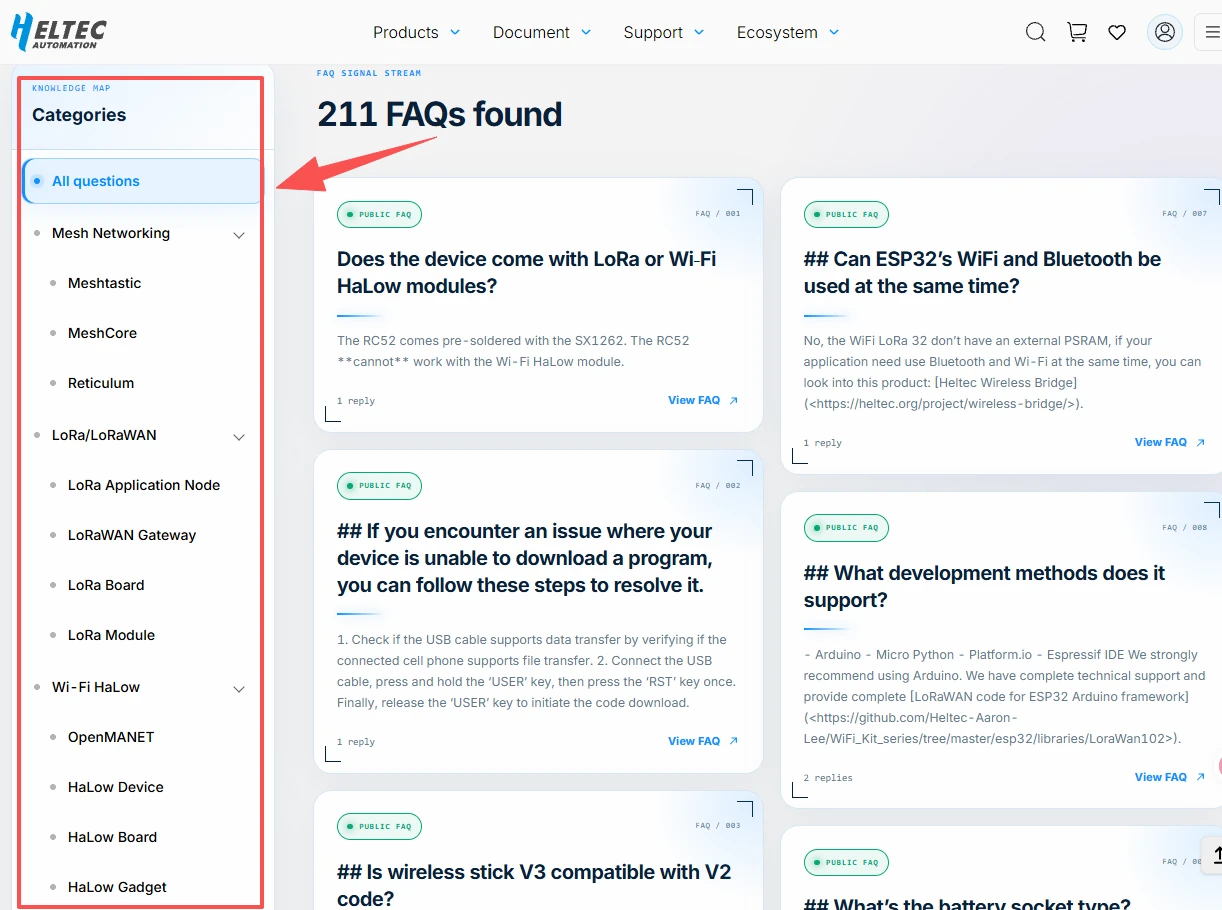
3.1.2 Filter by Category
Under Categories, choose a product or technology category, such as Mesh Networking, LoRa/LoRaWAN, or Wi-Fi HaLow. Expand a category to select a subcategory, or combine it with a keyword to narrow your results. Select All questions to include every category, or Reset filters to clear the filters.
3.1.3 Read Answers
Select a question card to open its details and read the full responses under Answers & Discussion. Replies from the Heltec team are marked OFFICIAL RESPONSE.
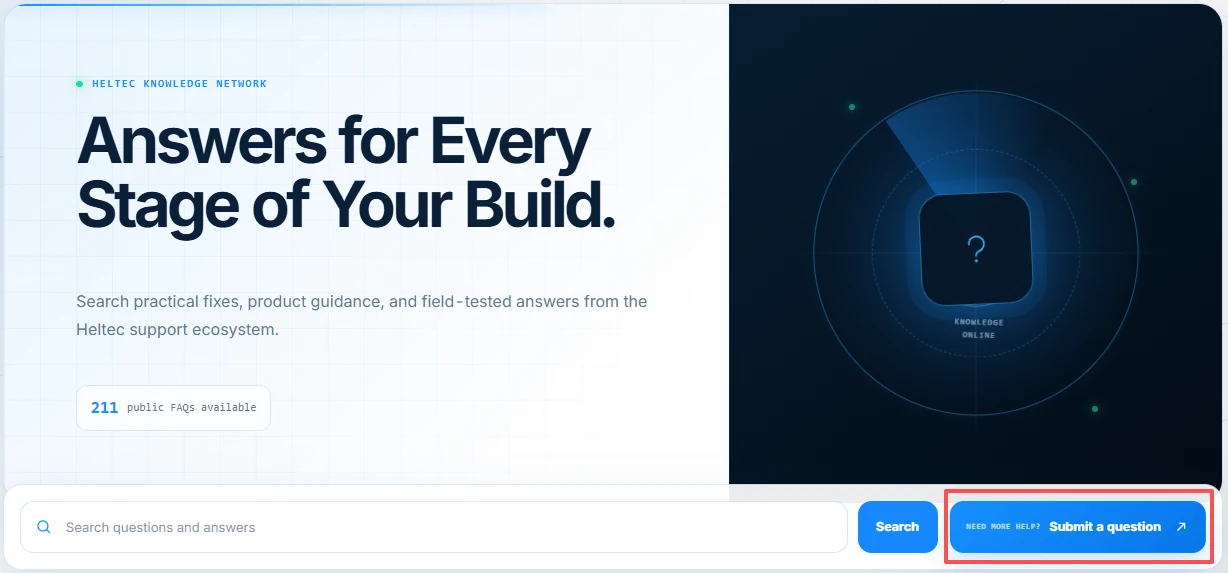
3.1.4 Submit a Question
Select Submit a Question to open My Question in My Account. For instructions on submitting a question and tracking its status, see 6.5 My Question.
4. Ecosystem – Connected Platforms & Resources
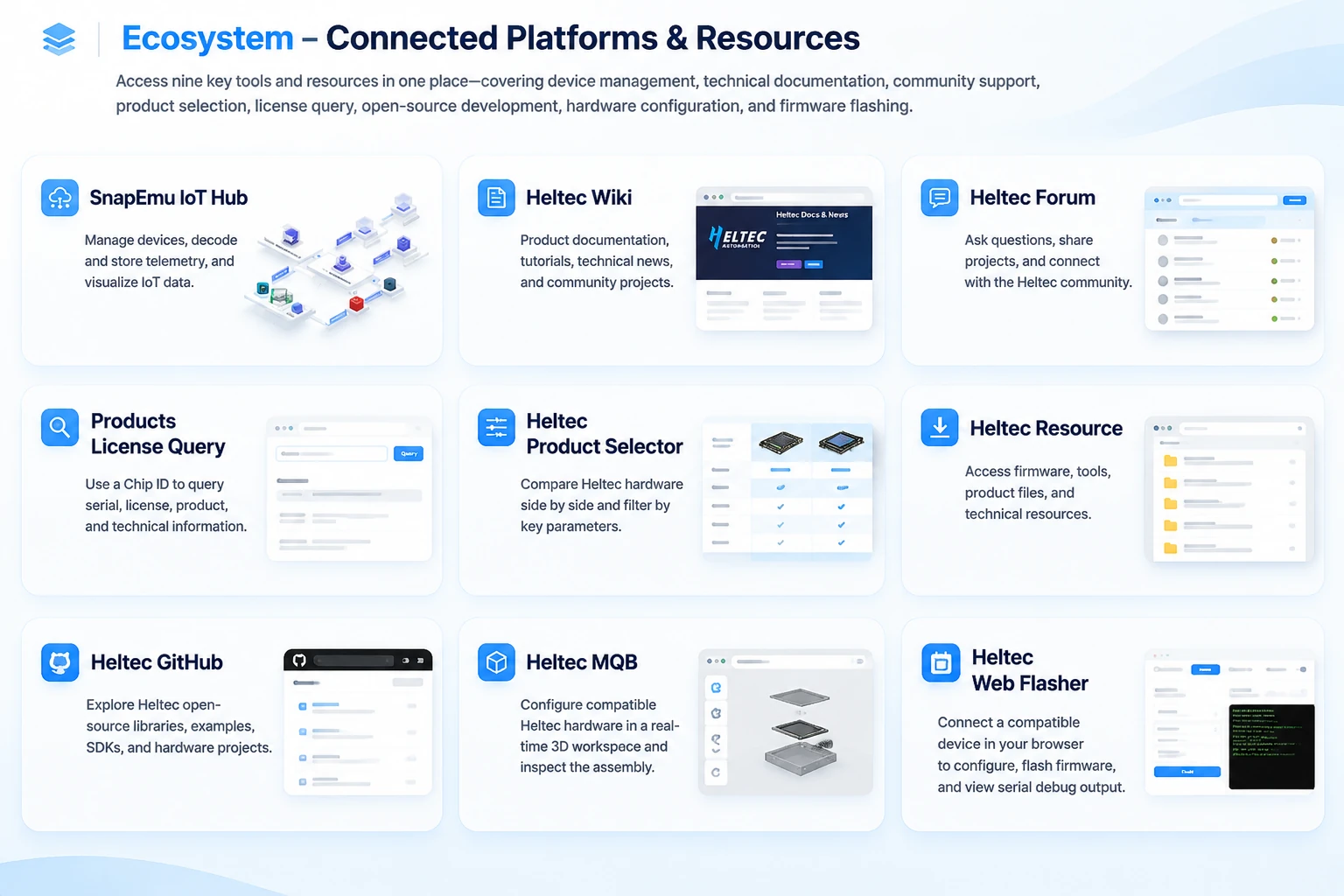
The Ecosystem section brings together nine key tools and resources: SnapEmu IoT Hub, Heltec Wiki, Heltec Forum, Products License Query, Heltec Product Selector, Heltec Resource, Heltec GitHub, Heltec MQB, and Heltec Web Flasher. From device management and technical documentation to product comparison, license verification, open-source development, hardware configuration, and firmware flashing, users can access essential tools and services in one place, making product selection, development, and deployment easier and more efficient.
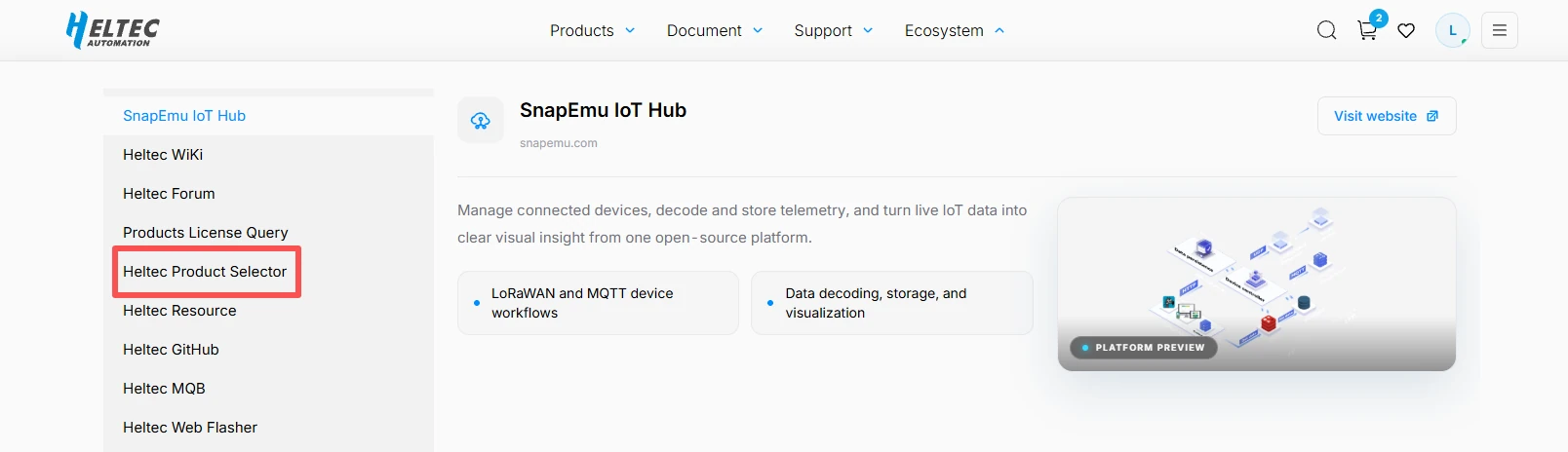
4.1 Heltec Product Selector
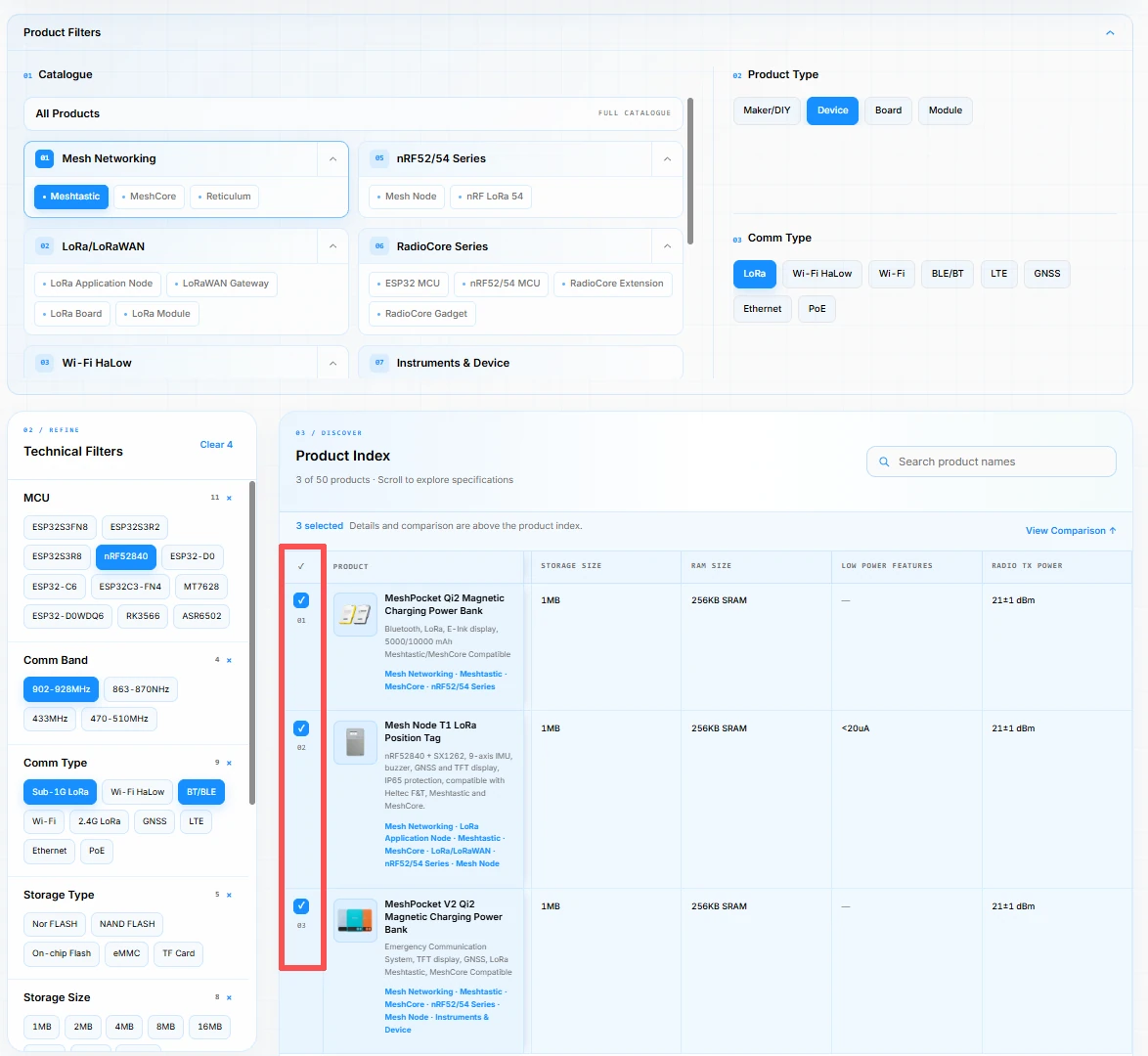
The Product Selector helps you quickly find products that meet your needs through filtering and comparison.
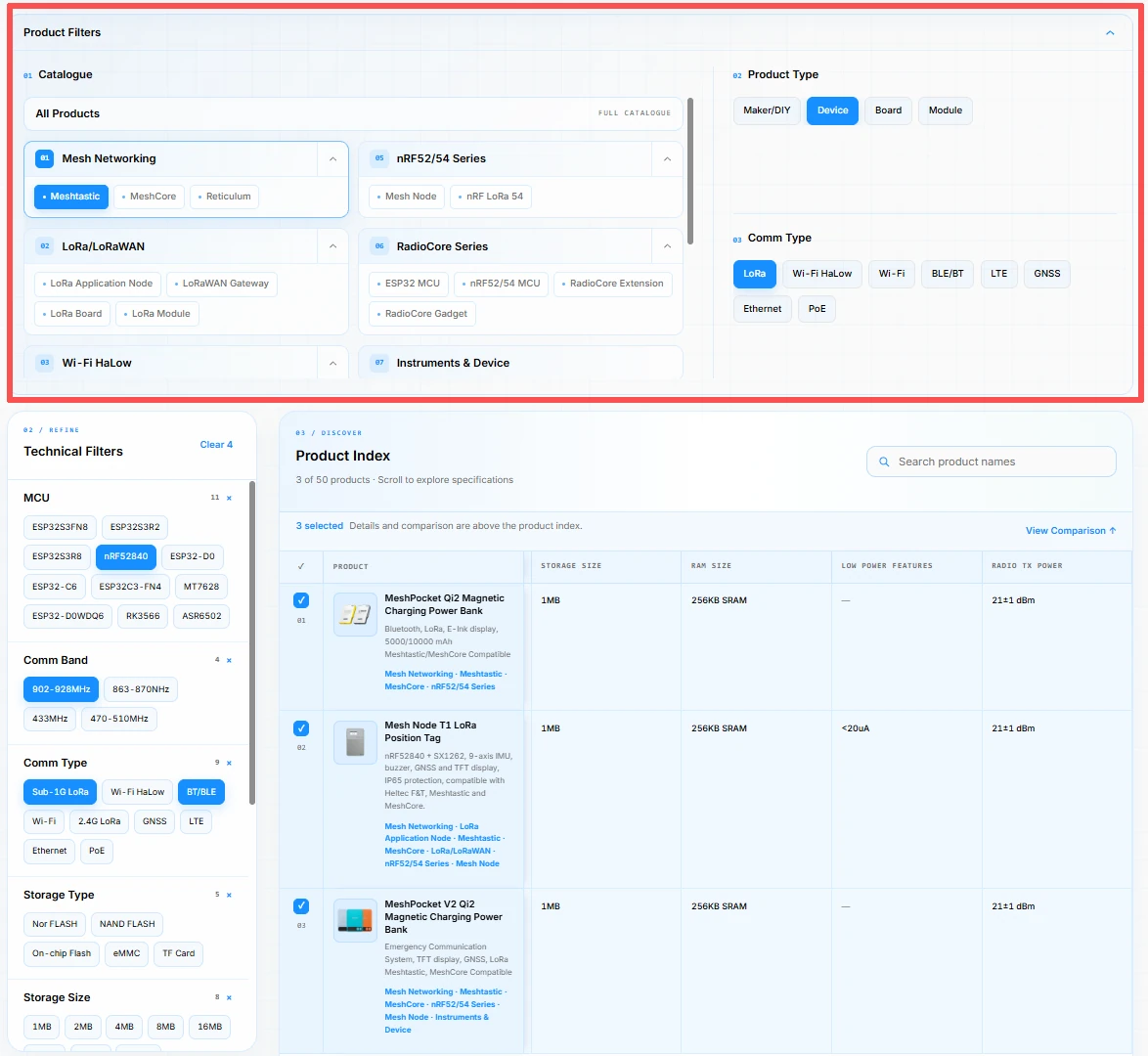
4.1.1 Narrow Down Your Options
Use the “Product Filters” section to narrow down your options by product series, product type, and communication type.
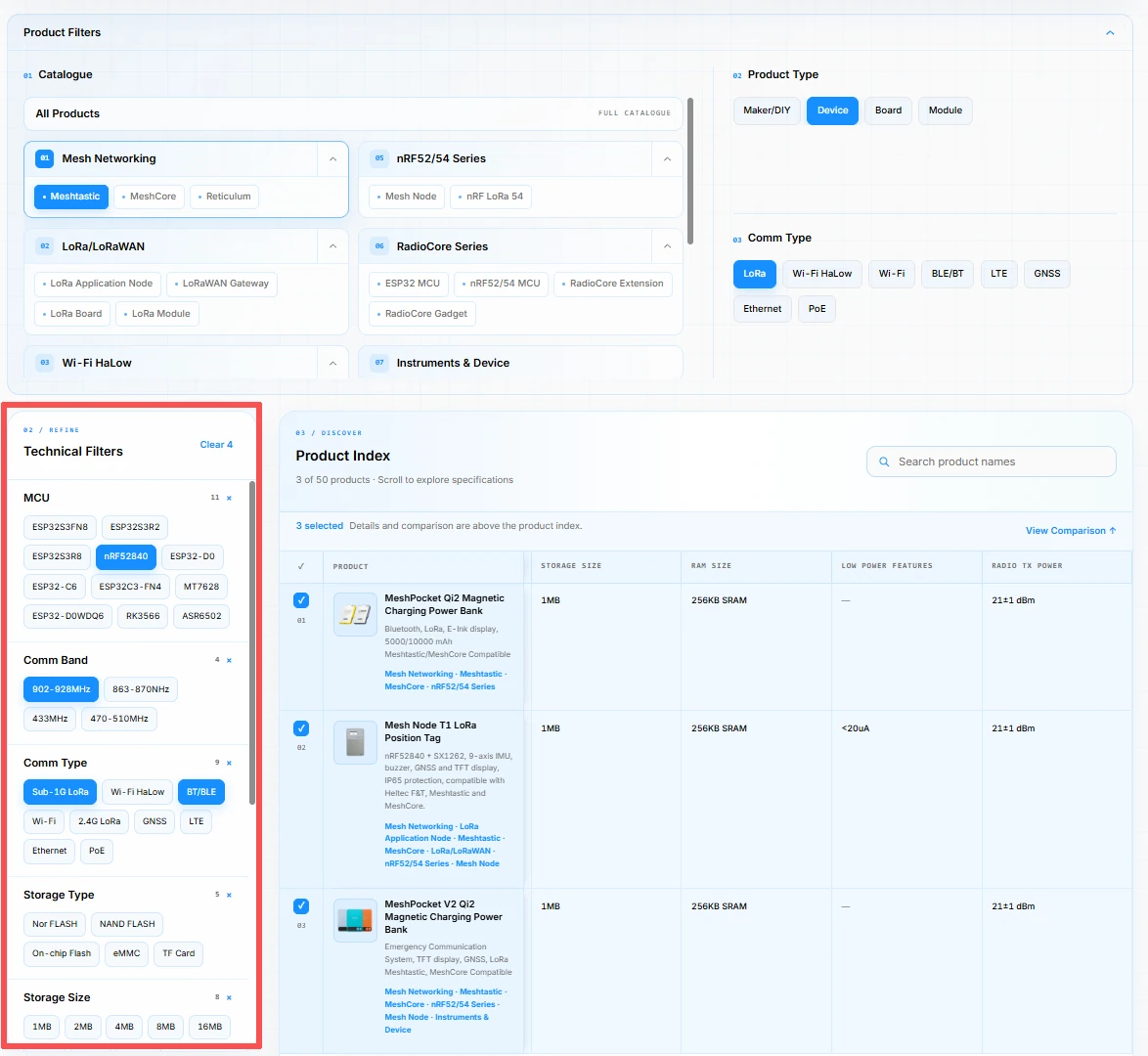
4.1.2 Refine Your Technical Requirements
In the “Technical Filters” section on the left, further refine your results by MCU, frequency band, communication type, storage capacity, and other parameters to better match your requirements.
4.1.3 Select Products of Interest
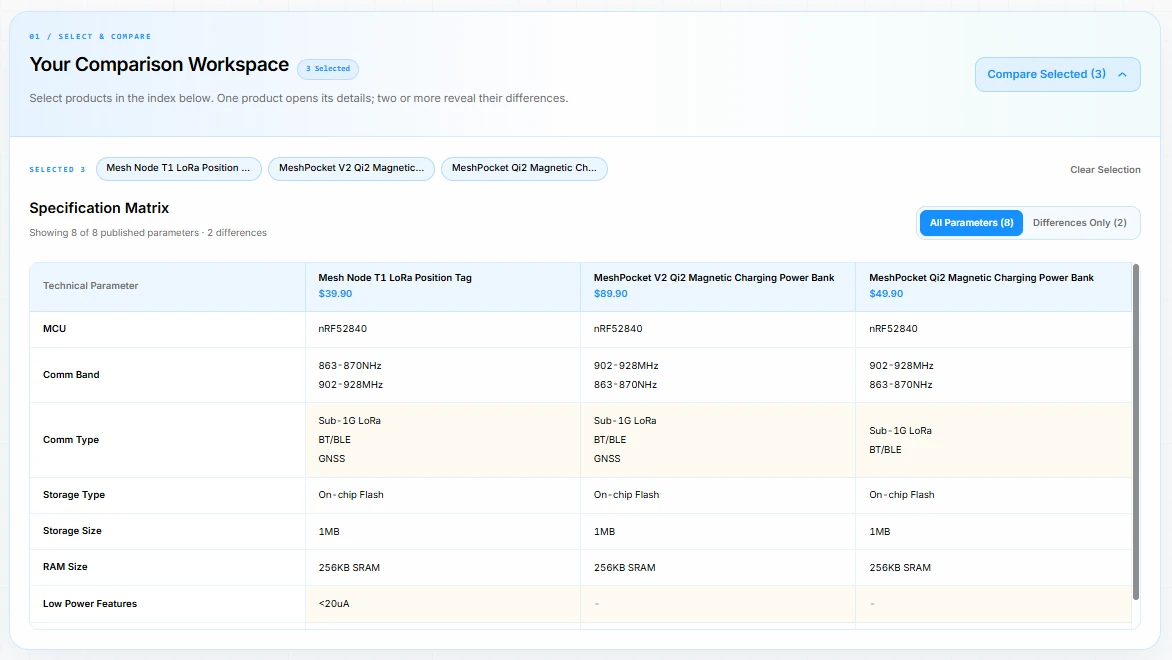
Products that match your filters appear in the “Product Index” section. Check the boxes next to the models that interest you. Your selected products will appear in “Your Comparison Workspace” at the top of the page for easy review.
4.1.4 Compare Products
The comparison area displays the selected products’ key specifications side by side. Select “All Parameters” to view all specifications, or switch to “Differences Only” to show only those that differ. This helps you quickly identify differences between models and choose more easily.
5. Product Detail Page
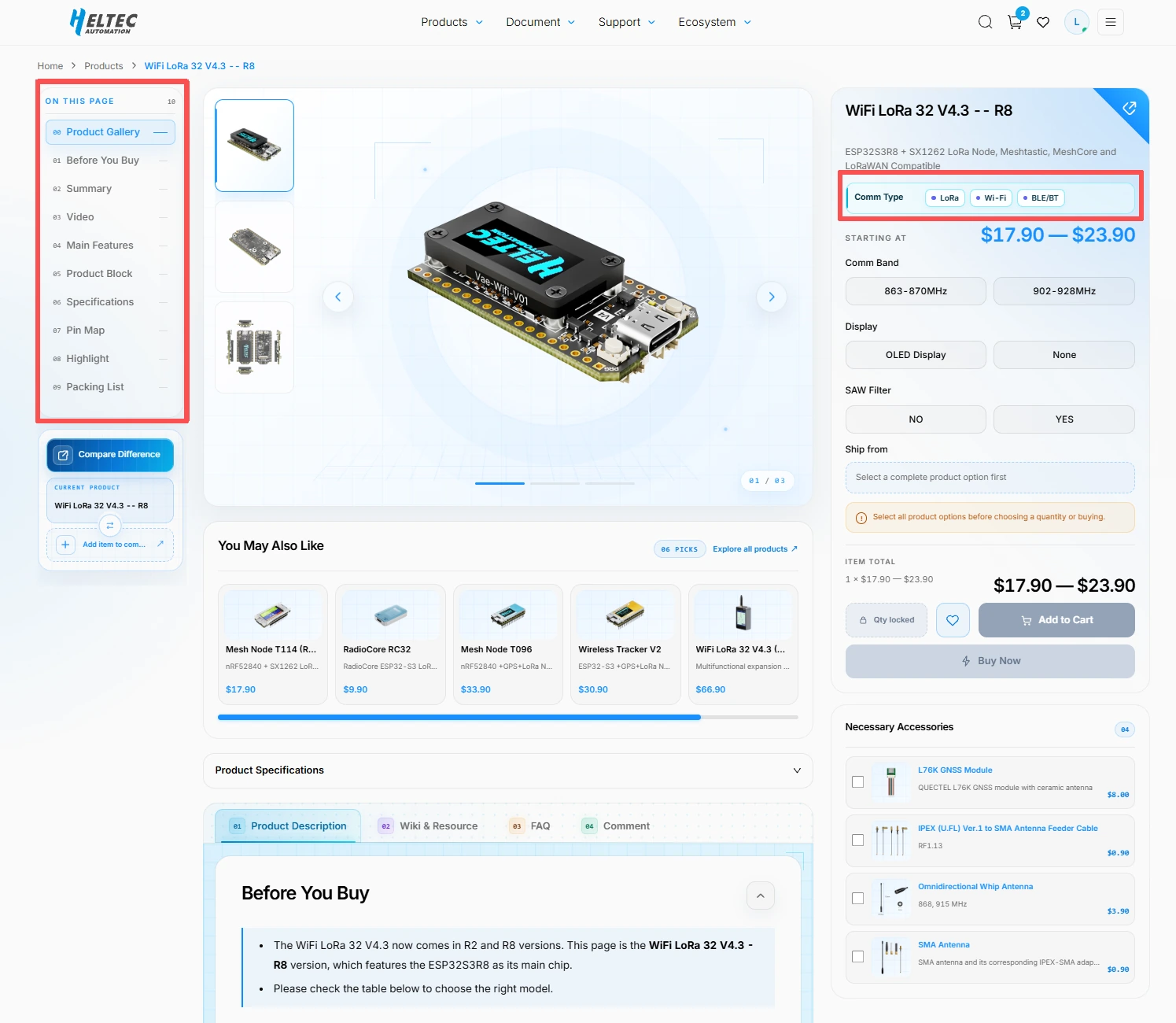
We’ve also updated our product detail pages to make it easier to explore product information, choose products, and find accessories.
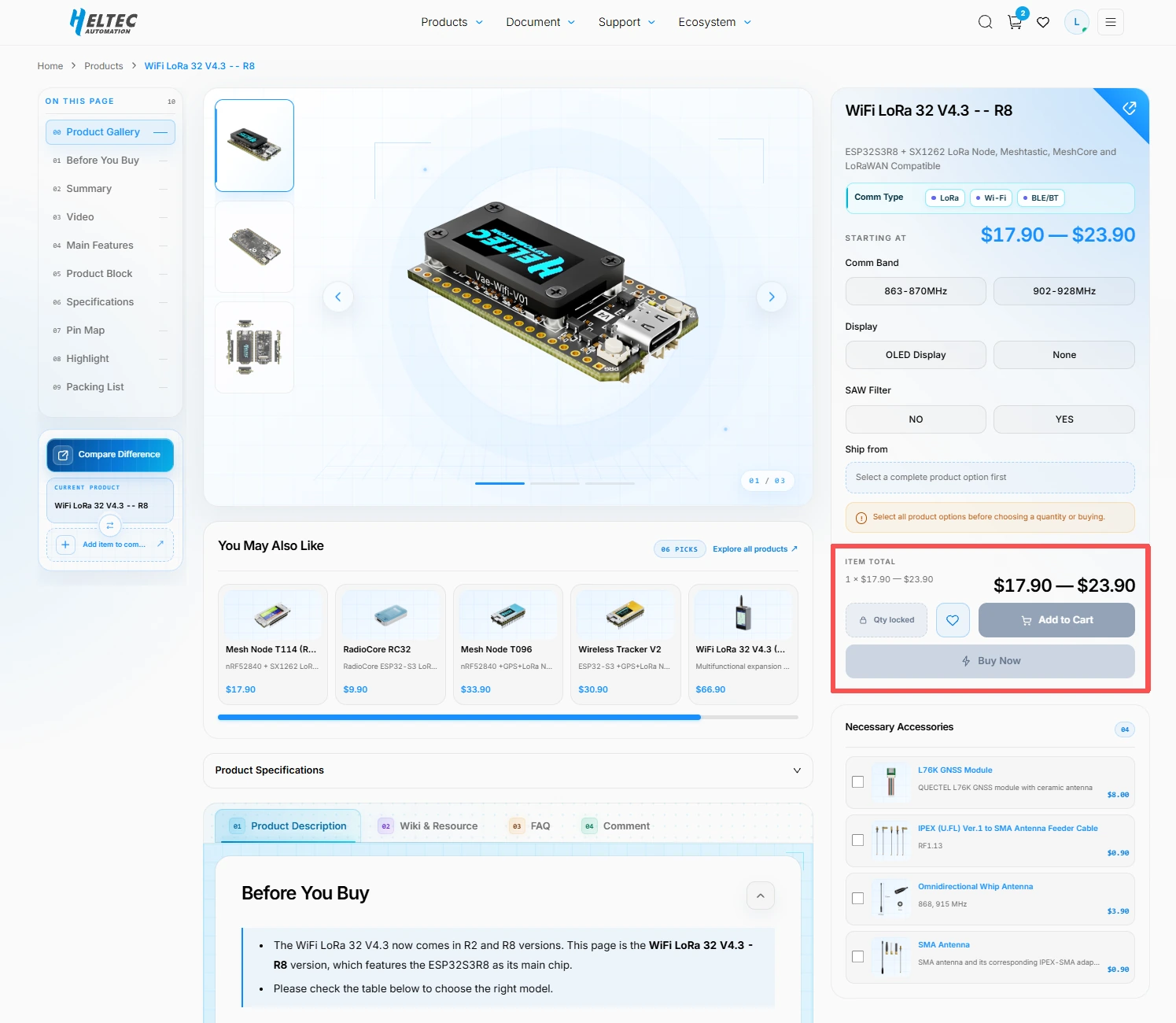
Use the menu on the left to jump directly to the relevant product information sections. On the right, select your product options, then proceed directly to checkout or add the item to your cart to continue shopping. Click a product tag to browse other products in the same category.
Next, we’ll introduce a few new features on our product detail pages.
5.1 Product Selection and Comparison
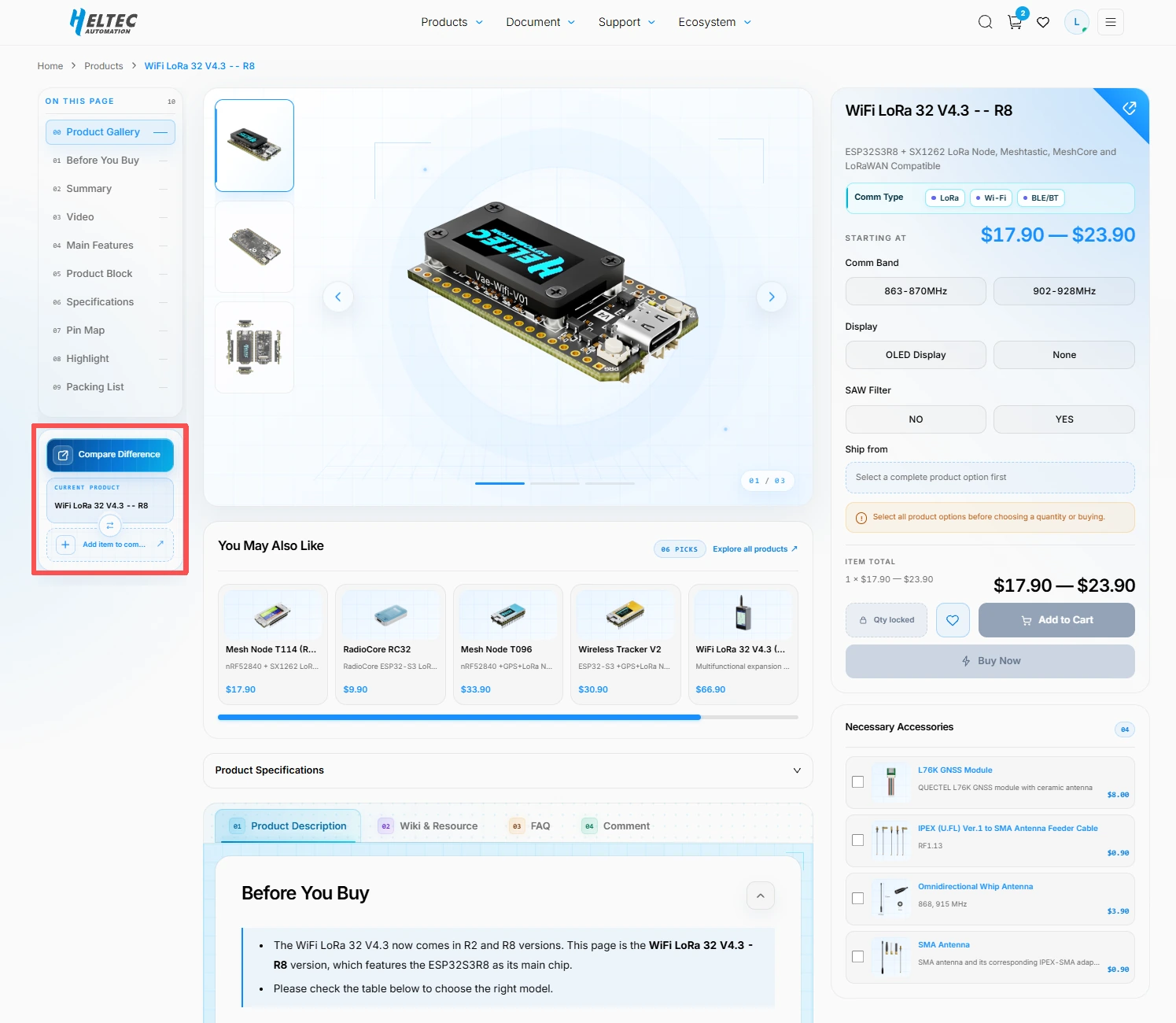
If you know what you need but aren’t familiar with our products, click “Compare Difference” below the menu on the left to open the product selection page. Its detailed filters help you quickly find products that meet your requirements.
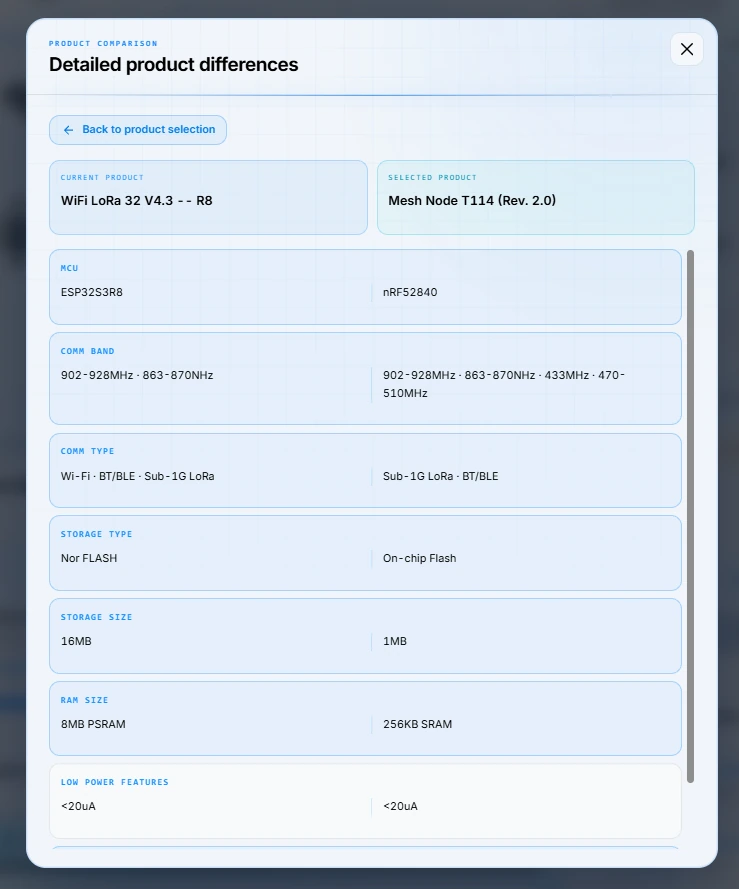
If you already have two products in mind and want to understand their differences, select another product below “Compare Difference” to compare it with the product you’re currently viewing. The comparison page displays their key specifications, core chips, supported features, and other essential information side by side, helping you understand the differences between models and choose more easily.
5.2 You May Also Like
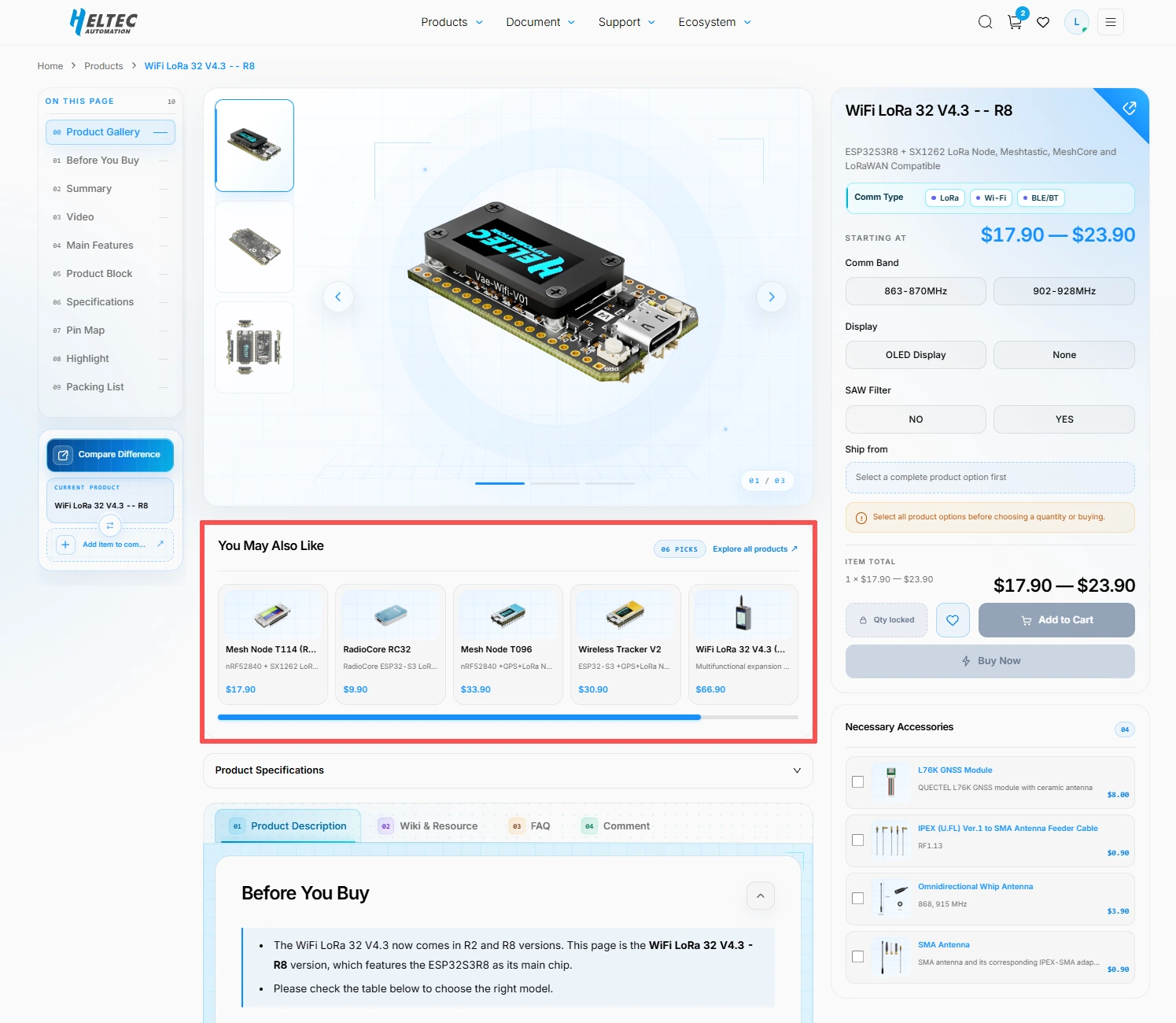
The “You May Also Like” section below the product images recommends similar or related products. Explore more options here and click any product that interests you to view its details.
5.3 Necessary Accessories
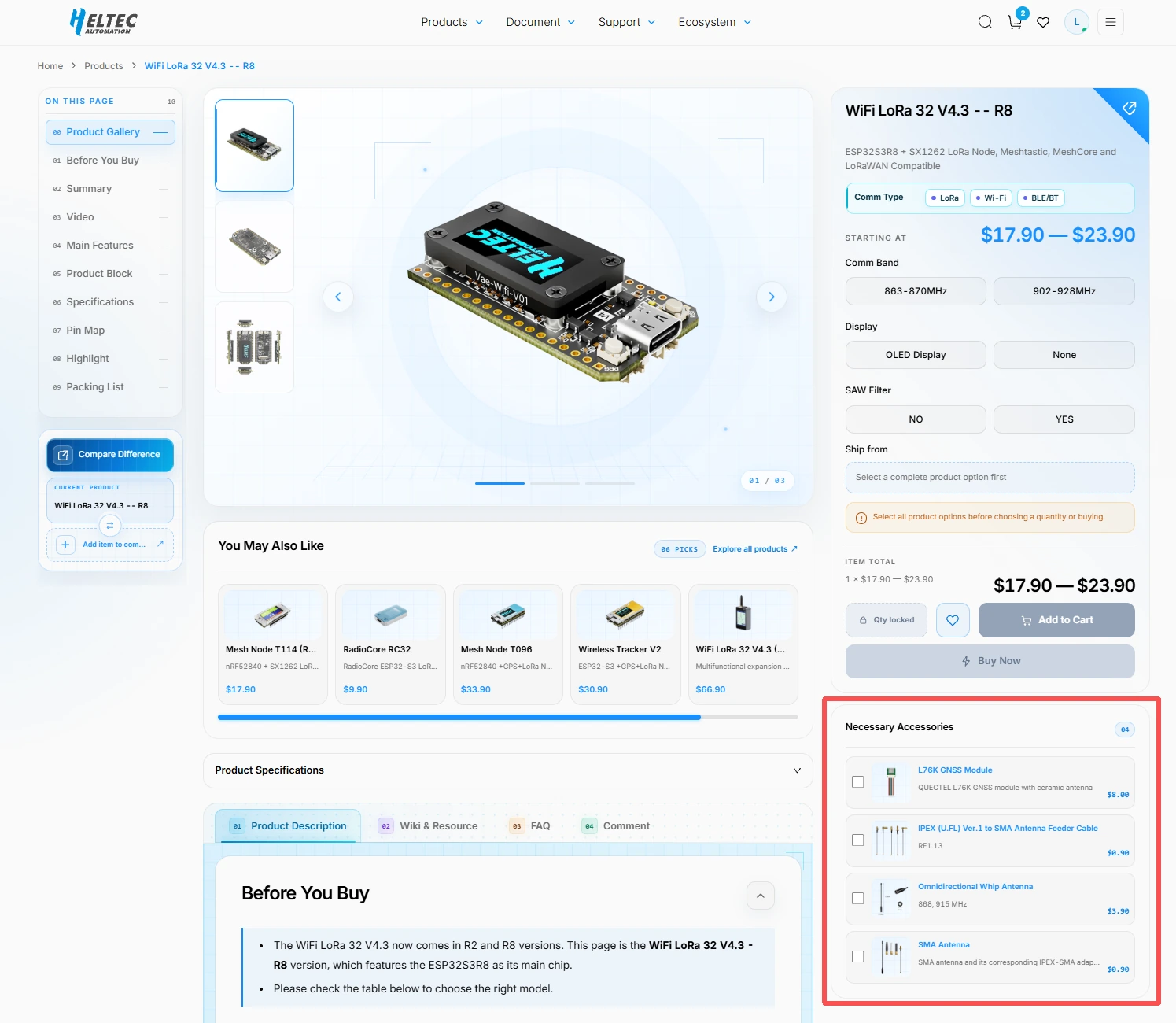
The “Necessary Accessories” section below the purchase area brings together accessories related to the current product. Choose the accessories you need when purchasing the main product, saving you the time of searching for them separately.
5.4 Wishlist
Click the heart icon in the purchase area to add the product to your wishlist. When a product you’ve saved has an update, we’ll notify you by email to keep you informed.
6. My Account Page
In My Account, you can check orders and rewards, manage addresses, and contact Heltec support.
6.1 Orders
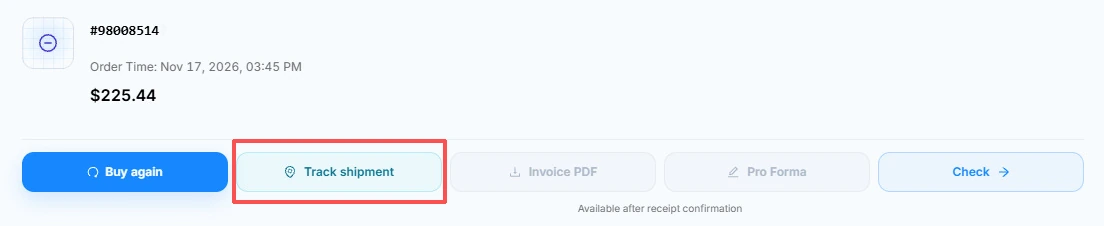
View your previous orders in Order History or enter an order number in Search orders to find a specific order. Open an order to see its items, order total, and current status. Tracking information appears in the order details once the order ships.
6.2 Points
Purchases on the Heltec website earn points, which are credited after you confirm receipt of your order.
Note: The points awarded equal 10 times the order’s product subtotal, excluding shipping and processing fees.
Check your current balance in Available Points. Points Activity shows the points added or deducted and your balance after each change.
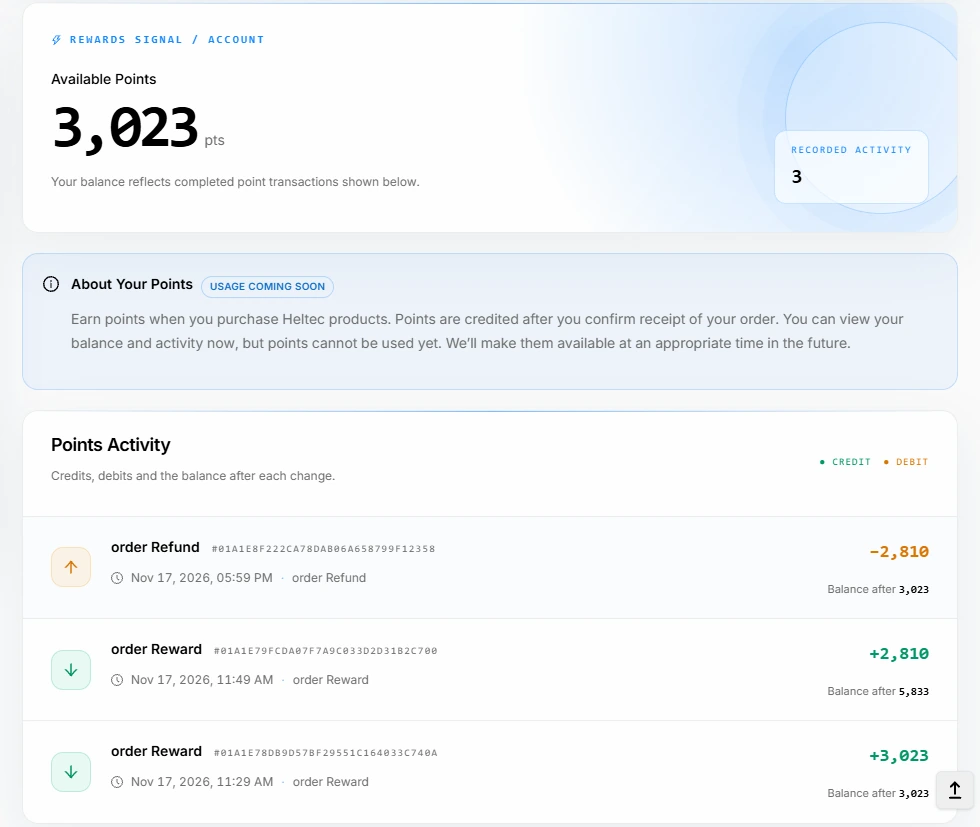
The option to use your available points will be available later. Stay tuned with us!
6.3 H-Bounty
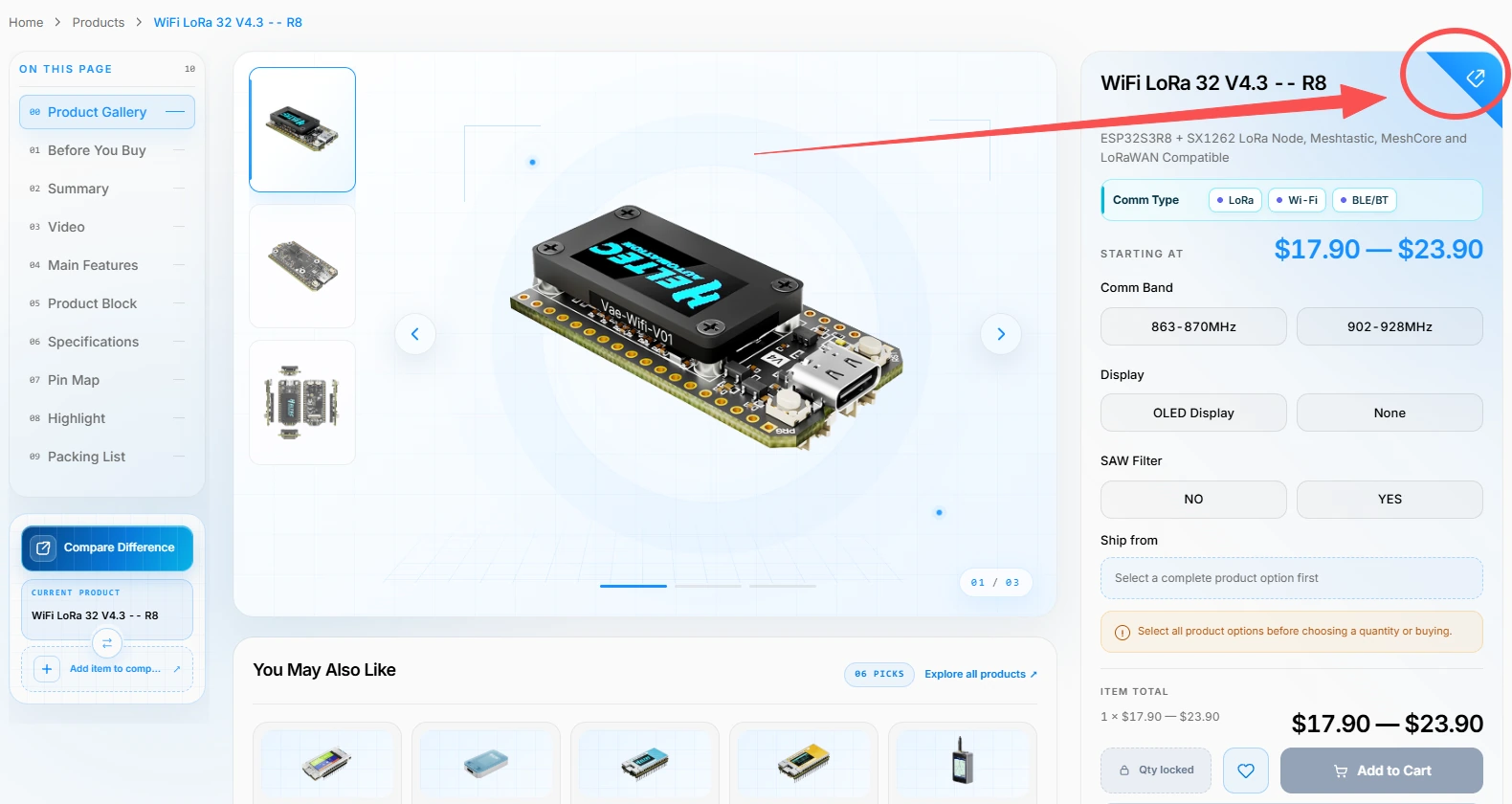
On a product page, click the Copy product share link(personal share link) icon and share the copied link. When another customer completes a purchase through your link, the bounty is recorded in your account.
Go to H-Bounty Overview to check earned and pending rewards.
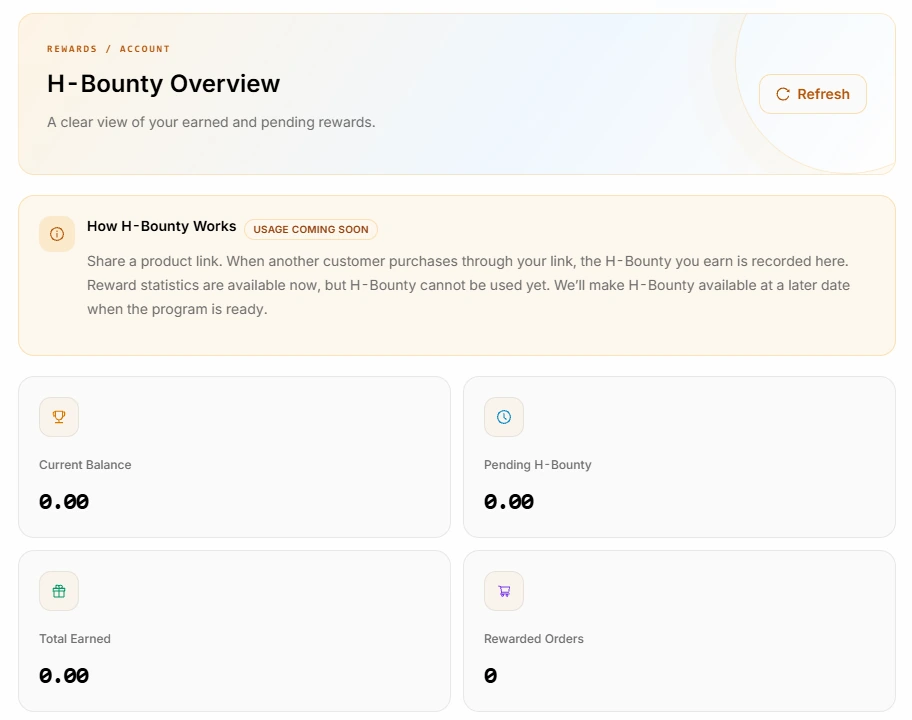
The option to use your H-Bounty balance will be available later. Stay tuned with us!
6.4 Coupons & Redemption Code
Redemption:
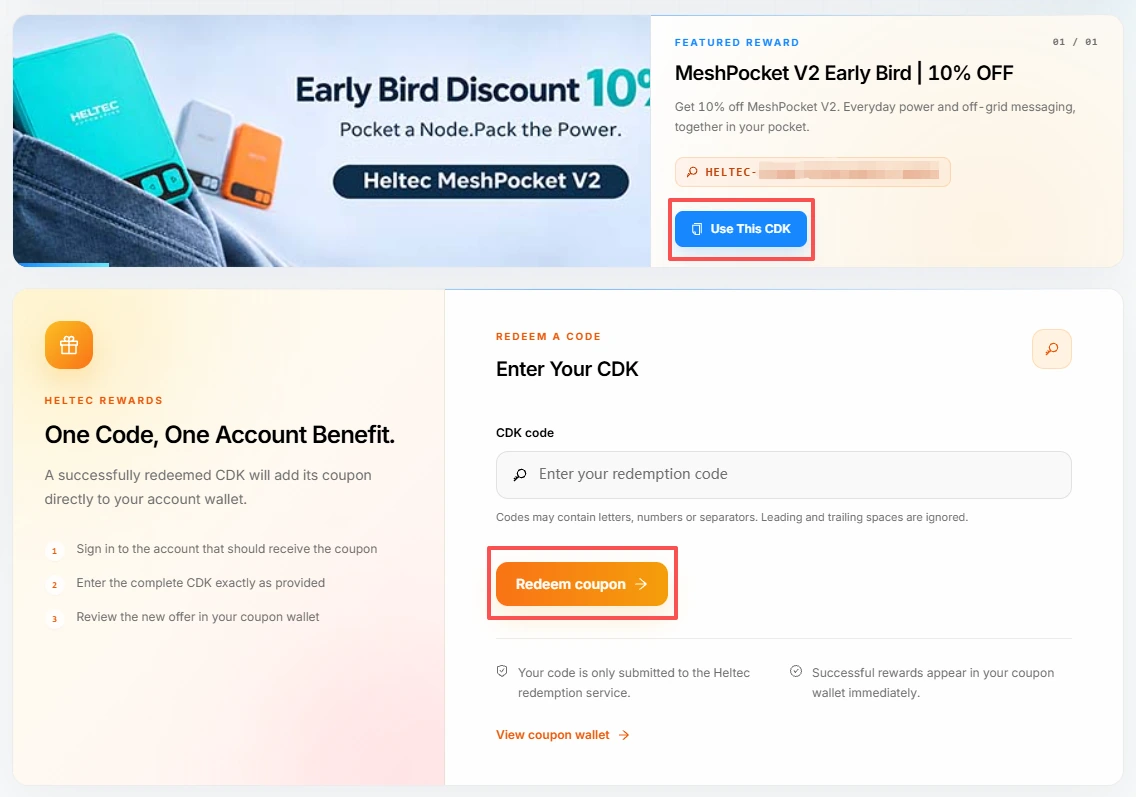
- Enter the full redemption code in CDK code. If the page displays a promotional code, you can select Use This CDK.
- Select Redeem coupon. Once the code is redeemed, the coupon is added to your account. Select View coupon wallet or open Coupons to view it.
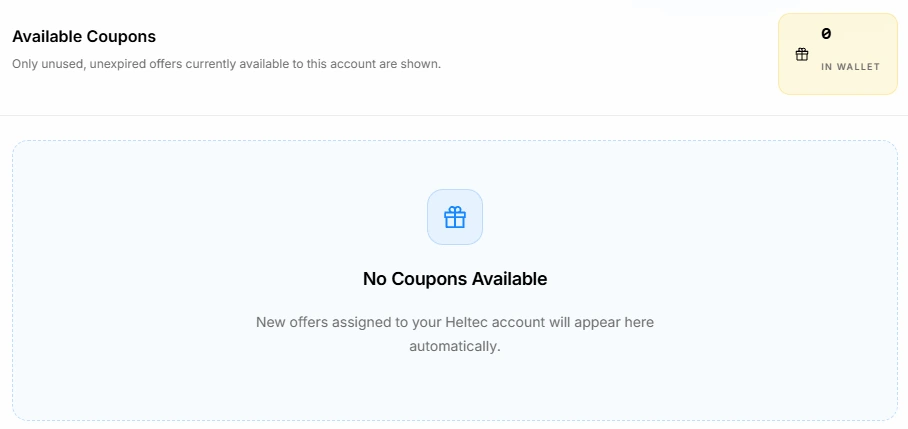
Available Coupons shows unused coupons that are still valid. Apply an eligible coupon at checkout and check the discounted order total before paying.
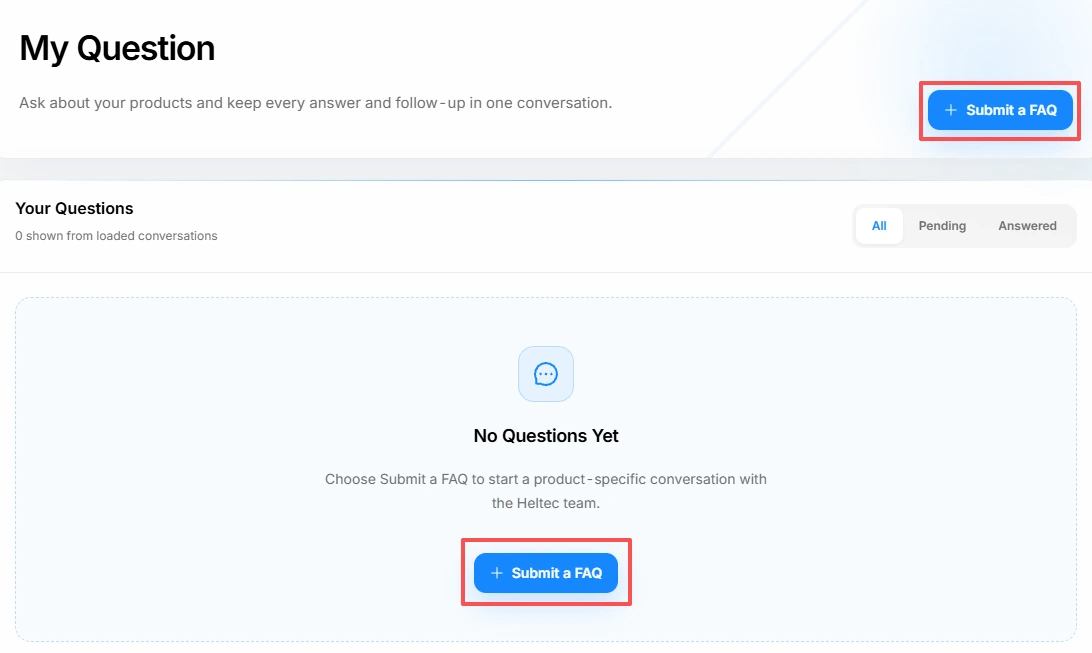
6.5 My Question
- Select Submit a FAQ. In Related Products, search for and select the relevant products.
- Describe your issue in Your Question using up to 5,000 characters. Use Markdown and the live preview as needed. Select Attach image to upload an image, or paste one directly. Each image can be up to 5 MB. Review your question and select Submit.
- In Your Questions, use All, Pending, or Answered to filter the list. Open a question to read replies or follow up in the same thread.
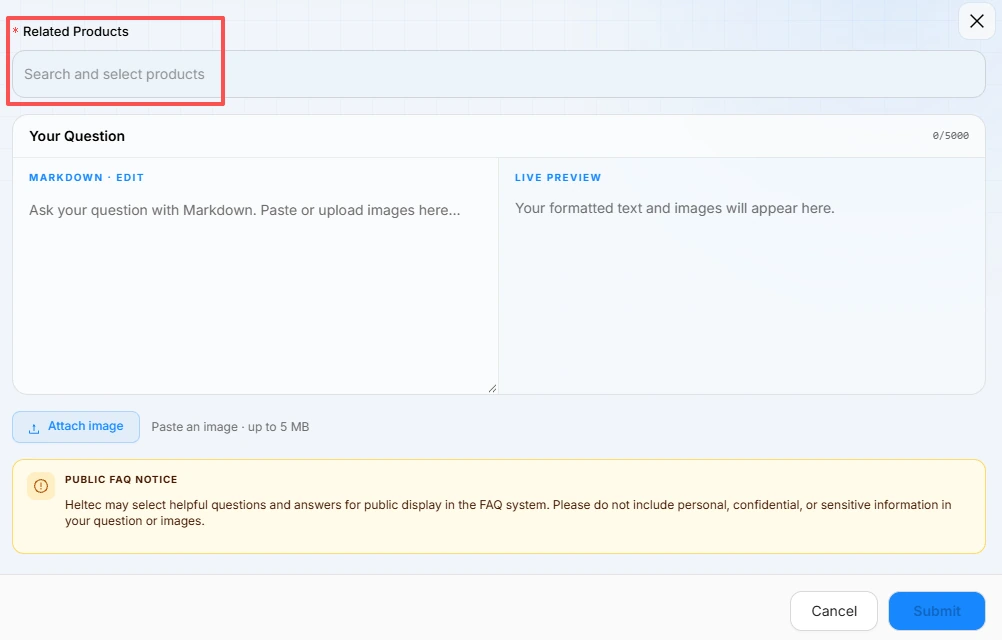
Heltec may publish selected questions and answers in its public FAQ. Remove personal or confidential information from your text and images before submitting.
6.6 Products License Query
Enter the ID printed on the hardware or read from the device in Product / Chip ID, then select Query License. Check Lookup Result for the device serial number, license information, and available technical resources.
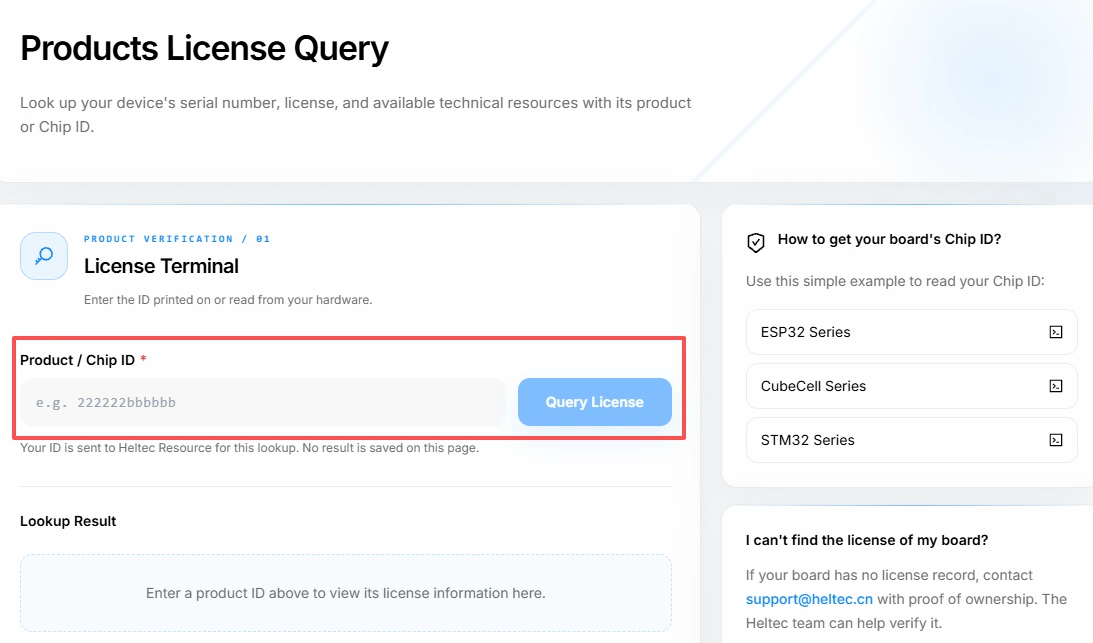
The page explains how to read the Chip ID on ESP32, CubeCell, and STM32 devices. If your search returns no license record, email proof of purchase to [email protected]. Heltec support can help verify the license.
7. Help Us Improve the New Website
Thank you for your ongoing support. If you encounter any issues or bugs while using the site, or if you have suggestions for improvements, please feel free to share your thoughts. We greatly appreciate your feedback!
Share website issues and suggestions in the Heltec new website bug report forum thread. Where possible, include the page URL, steps to reproduce the issue, your browser and device, and screenshots to help us investigate.
You can also share your feedback via email: [email protected].